> For the complete documentation index, see [llms.txt](https://uxento.gitbook.io/uxento/llms.txt). Markdown versions of documentation pages are available by appending `.md` to page URLs; this page is available as [Markdown](https://uxento.gitbook.io/uxento/tools/automations.md).
# Automations
This part of the documentation will explain how to use Automations on uxento.
With users already able to manually deploy at lightning fast speeds thanks to uDev, the only way to create an edge for yourself moving forward is acquainting yourself with uxento Automations; fully automated coin creation based on predefined triggers and parameters.
The **Automations** panel has two core tabs, one for '**Deployers**' and one for '**Traders**'.
### **Deployer Automations:**
### **AI Deploy:**
AI Deploy allows you to add accounts from X, Instagram, and Truth Social to be continuously monitored by uxento’s AI. When activity matches your conditions, uDev can automatically deploy a token using your selected **Preset**.
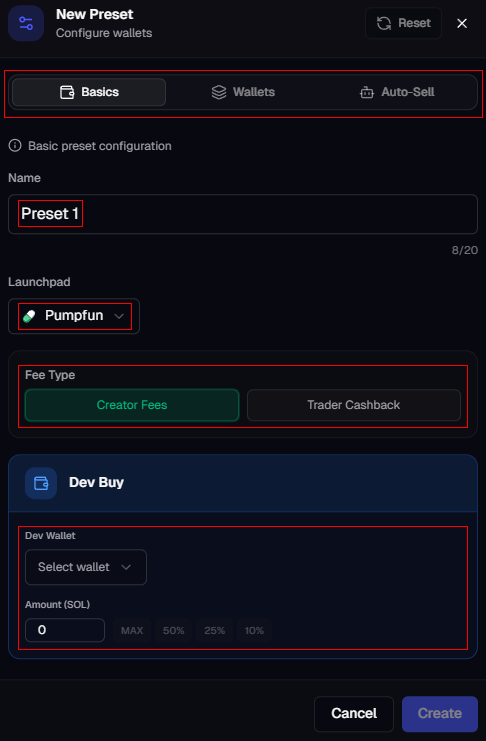
To set it up, click **Add**, choose the accounts, and assign a **Preset**. A **Preset** is your launch template, defining platform, launch type, dev amount, preferred wallets and optional tools like [bundler, sniper,](/uxento/tools/udev.md#sniper-bundler) and [auto-sell](/uxento/tools/udev.md#auto-sell). If none exist, set one up first by clicking the **Create** button.
You can trigger coin launches from four specific activity types:
* New Tweets
* PFP Changes
* New Follows
* Name Changes
For example, if we're monitoring @elonmusk with **PFP Change** and **Name Change** enabled, uDev will launch a coin every time Elon Musk's X account performs one of those actions.
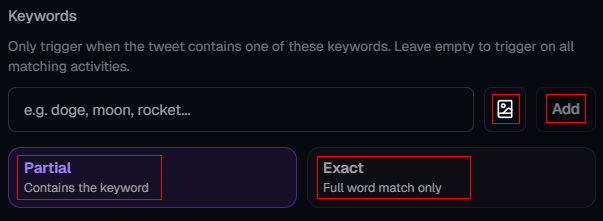
You may choose between two AI models for AI-Deploys: '**Normal**' and '**bwam**'. The normal model is trained on a broadset of deploys whereas bwam is trained only on deploys by the '**bwam**' developer. Additionally, you may also apply keyword filters with exact or partial match logic to filter when **AI Deploy** will trigger uDev.
Keyword Triggers
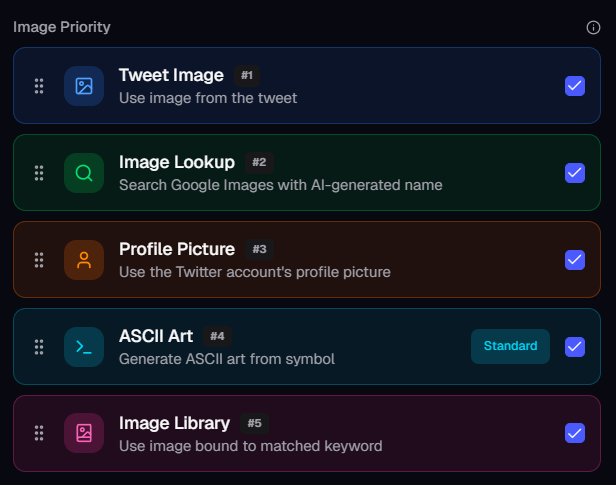
Finally, you can configure **Image Priority**; this is the hierarchy that uDev uses to source images for coin creation. By default, it prioritizes images from the original post, then AI image search, then fallback options like profile pictures, ASCII art, or your keyword-bound image library.
Image Hierarchy
{% hint style="info" %}
You can bind Images to Keywords via the uDev Image Library. Once bound to a keyword, Scraper can use those keywords to automatically fetch and reuse those images in future launches based on the same keyword.
{% endhint %}
Enable “**Disable After Success**” to prevent repeated launches from the same source.
Disable After Success Button
{% hint style="info" %}
When using **Scraper**, uDev generates coins using AI-derived data from the original source. Names and tickers are **auto-generated**, allowing fully autonomous deployment once configured without the need for manual input.
{% endhint %}
### Auto-Deploy:
If you don't wish to use the AI features available within **Automations** you can make use of the **Auto-Deploy** feature. **Auto-Deploy** works similarly to AI-Deploy but with fixed token values and no AI. \
\
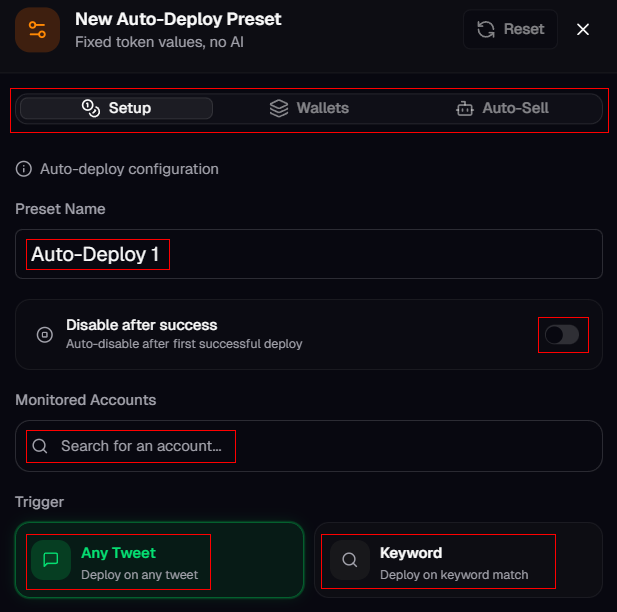
To configure, click **Add** in the **Auto-Deploy** panel and assign your preset name, which accounts to monitor and the specific trigger. **Auto-Deploy** can be triggered by the same activity types as **Scraper**, or by keywords only.
Auto-Deploy Configuration
\
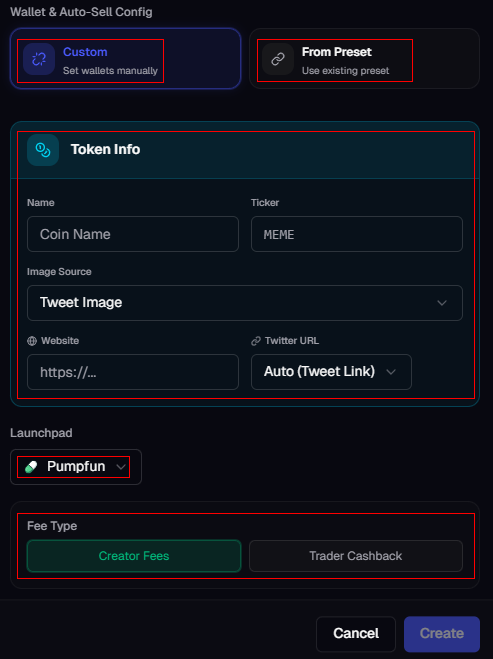
Once you've added which accounts to track and their triggers you can define your token and wallet configuration. Choose '**Custom'** to set wallets manually, or 'F**rom Preset**' to use an existing preset. \
\
Token Info is where you will pre-bake your token information for uDev to use when triggering **Auto-Deploy**, you can preset the name, ticker, image source, website and twitter URL logic, as well as the launchpad, launch type and dev amounts.
Wallet and Token Configuration
The **auto-deploy** panel also has two additional tabs at the top where you can configure rules for your bundler, sniper and auto-sell.
### Presets:
Lastly, the **Presets** tab gives you a complete overview of all your saved presets. You can click **Add** to create a new preset or edit existing ones at any time.
Preset Configuration
{% hint style="info" %}
Presets created within Automations are global and can also be used when launching manually via uDev.
{% endhint %}
**To see a breakdown of how to configure uxento Automations for Deployers, you can watch the below video:**
{% embed url="" %}
### **Trader Automations:**
Within the Trader Automations panel, you can configure a number of automated actions to level up your trading edge, this includes auto-buys on tokens, keyword interactions and activity monitors.
### **Auto Sniper:**
Auto Sniper allows you to set up keyword, interaction, and CA snipers to auto-buy tokens. Under the Auto-Sniper settings, you may configure the **CA Buy Amount** (the default for quick-buy buttons) and your preset dedicated **Sniper Wallet for buys** (which may be changed at anytime).
Within the Auto-Sniper settings, there are a number of interactions and events that can be monitored to trigger sniping such as:
**Keyword Sniper:**\
Set up keyword-based auto-buys tied to specific Twitter accounts. When a tracked user tweets, retweets, quotes etc. a keyword, the sniper automatically buys the specified token. Supports exact and partial match modes.
**CA Sniper:** \
Auto-buy when CA is detected from specific accounts across any post type.
**Interaction Sniper:**\
Auto-buy when a specific user replies to another specific user. Perfect for tracking insider conversations.
**Post Interaction Sniper:**\
Monitor a specific post and auto-buy when a target user interacts with it via reply, quote, or retweet.
**Activity Sniper:** \
Auto-buy when any activity is detected from specific accounts i.e. tweets, replies, follows, pfp changes etc.
**Image Sniper:** \
Upload or paste an image URL, and when a tracked account posts a matching image, the sniper auto-buys. Supports tweet, reply, quote, retweet, PFP, and banner change activity types.
To configure any of the above **Event Triggers**, simply click '**Add**' next to their respective panel and fill in the prompts as necessary. Sniper Triggers can run as '**Browser Only**' or in '**24/7 Mode**' where they execute directly from a server without needing to keep your browser open. To enable **24/7 mode**, ensure you have '**Browser Only**' toggled off. You may also enable '**Buy Same CA Only Once**' and '**Disable After Success**' to ensure you aren't repeatedly buying the same CA. \
\
Additionally, you may also customize the priority fee, tip and slippage per task for the best execution between strategies as well as save these fee configurations as presets for future use.
In configuration, all event triggers support **Multi-Username** triggering meaning you may enable multiple usernames to monitor per event trigger. You may also save frequently used Usernames as presets to load in future sniper triggers.
{% hint style="info" %}
Auto-Sniper is also compatible with the BSC Chain and can be run simultaneously alongside Solana sniper automations.
{% endhint %}
### Notifications:
You can set up notifications that inform you whenever your sniper executes an action to ensure you never miss a trade. To do so, simply select a sound under '**Sniper Notifications**' and an alert will play every time the sniper goes off. You may also get notified in Discord when your auto-sniper executes by configuring your Discord Webhook URL under the '**Discord Notification**s' panel.
### Execution History:
Under **Execution History** you may view a full history of all sniper executions with status filters (All/Success/Failed). Via this panel you may also re-add triggers from history, and Trade directly on recently interacted tokens with quick buttons.