# uDev

uxento also gives you the power the to **be the dev, simpler than ever, with uDev.**

### Fees:

1.00% + Launchpad Fee **= Creation**

0.75% + Launchpad Fee **= Buy/Sell**

### **How to Deposit Funds to your uDev Wallet:**

To use uDev to launch coins, you need a starting balance of SOL (or alternative currency) in your wallet.&#x20;

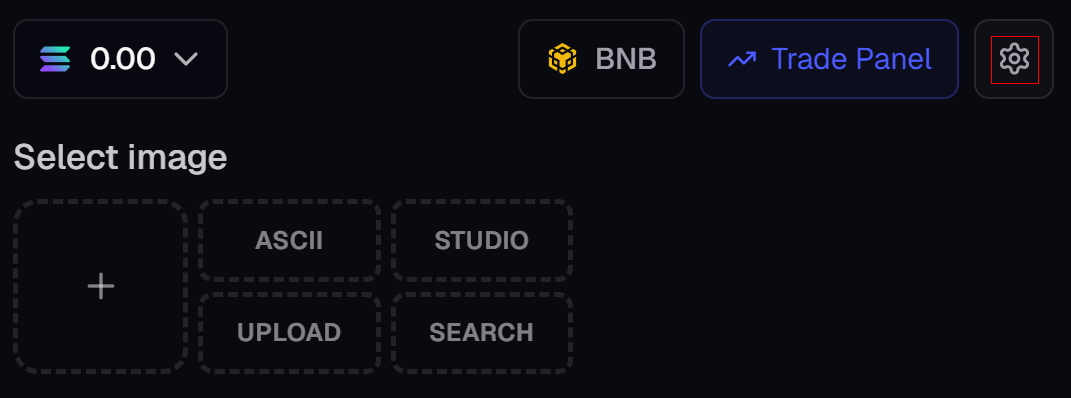
To deposit funds to your uDev wallet, simply click on the wallet overview in the top left of your homepage, and then click deposit. \
\
The minimum recommended amount of SOL required to launch is 0.1 SOL.&#x20;

<figure><img src="https://2665344143-files.gitbook.io/~/files/v0/b/gitbook-x-prod.appspot.com/o/spaces%2FmXvOrl9RSk6mBXFC961z%2Fuploads%2FQYFLCJfNCbz3z2woPf15%2Fwalletoverview2.png?alt=media&#x26;token=aaf09cc9-fd52-4c01-b326-65247fe0ffa5" alt=""><figcaption></figcaption></figure>

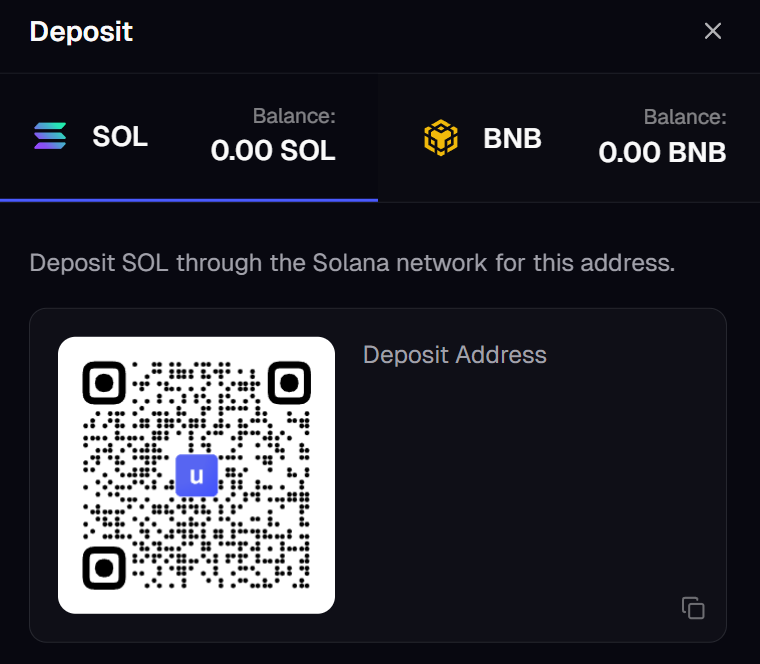
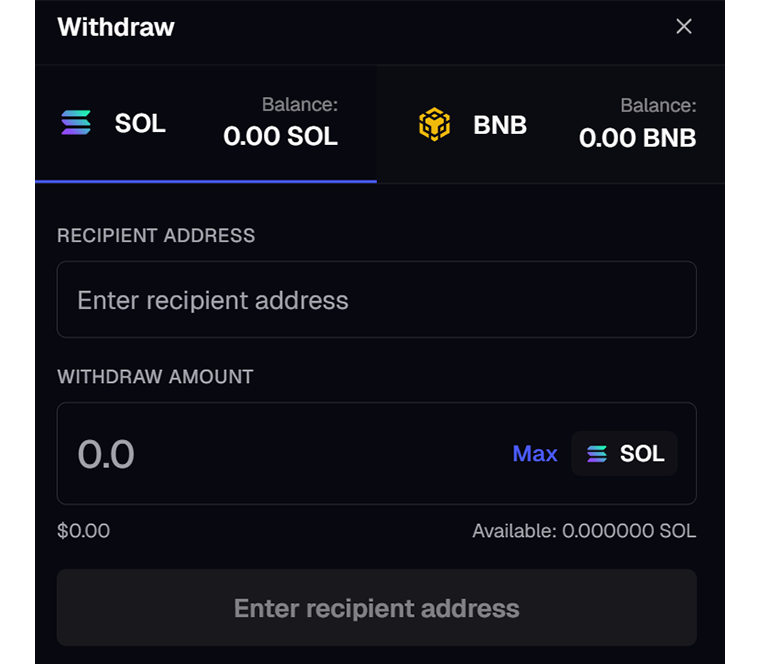
Once in the **Deposit** tab, you may send funds from your wallet to the wallet address provided, or scan the QR code provided to execute it safely from your mobile wallet. You may also withdraw any funds held in your uDev wallet via the **Withdraw** tab.&#x20;

<div><figure><img src="https://2665344143-files.gitbook.io/~/files/v0/b/gitbook-x-prod.appspot.com/o/spaces%2FmXvOrl9RSk6mBXFC961z%2Fuploads%2FLdDlgiEaAzdaTW0j7tAt%2FDeposit.png?alt=media&#x26;token=fa6e2c40-b76b-4dbb-9416-bc8ae659512f" alt="" width="375"><figcaption></figcaption></figure> <figure><img src="https://2665344143-files.gitbook.io/~/files/v0/b/gitbook-x-prod.appspot.com/o/spaces%2FmXvOrl9RSk6mBXFC961z%2Fuploads%2FVr4IYeawOtkEn8UWH6YL%2Fwithdraw.png?alt=media&#x26;token=1a9c5794-10a2-481b-b281-73705bd93533" alt="" width="375"><figcaption></figcaption></figure></div>

### How to Launch Coins with uDev:

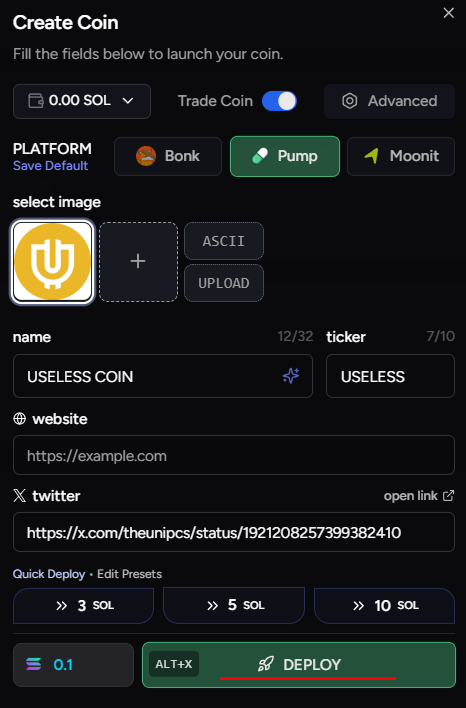
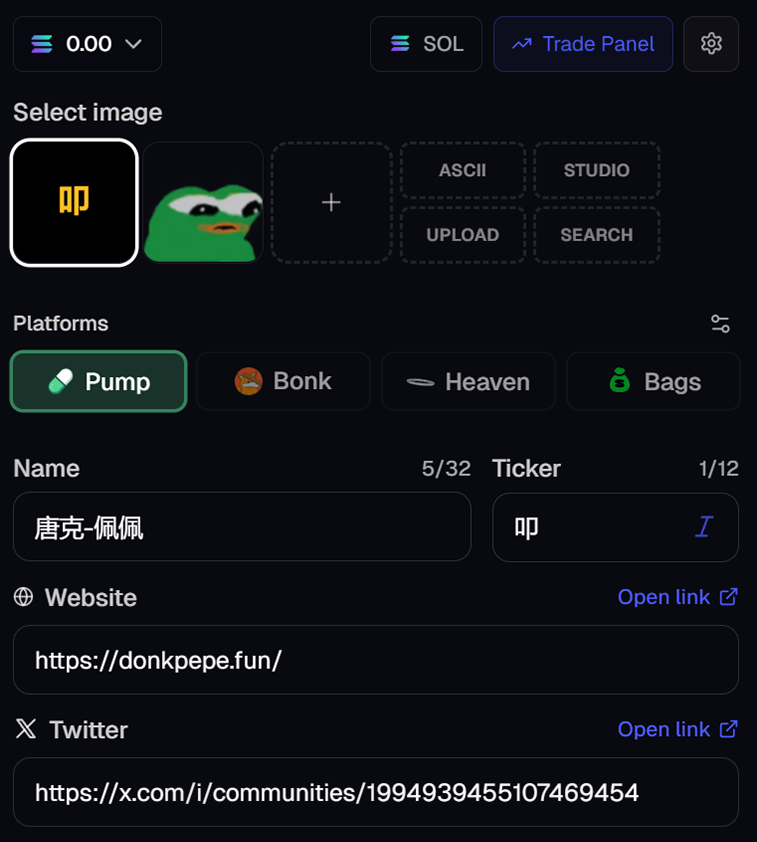
To launch a coin with uDev, simply click the **Create** button to be taken to the **uDev Creator Module** which will allow you to customize your coin.&#x20;

<figure><img src="https://2665344143-files.gitbook.io/~/files/v0/b/gitbook-x-prod.appspot.com/o/spaces%2FmXvOrl9RSk6mBXFC961z%2Fuploads%2Fo1g9f618OOLcPg8th9G8%2Fcreate.png?alt=media&#x26;token=1428a7bc-cdf2-4670-99ce-748e717e7801" alt=""><figcaption><p>Create Coins with the Create Button</p></figcaption></figure>

<figure><img src="https://2665344143-files.gitbook.io/~/files/v0/b/gitbook-x-prod.appspot.com/o/spaces%2FmXvOrl9RSk6mBXFC961z%2Fuploads%2FdMClDiC3SfbMhT31bGsz%2Fnewnenwnewne.png?alt=media&#x26;token=0c7f187a-eed0-4562-be0d-b55e978a7eaa" alt="" width="563"><figcaption><p>uDev Launch Panel</p></figcaption></figure>

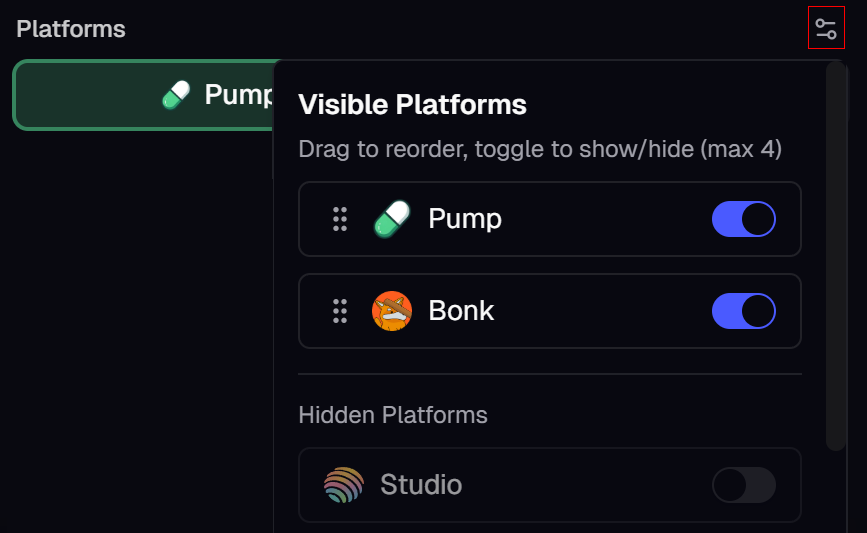
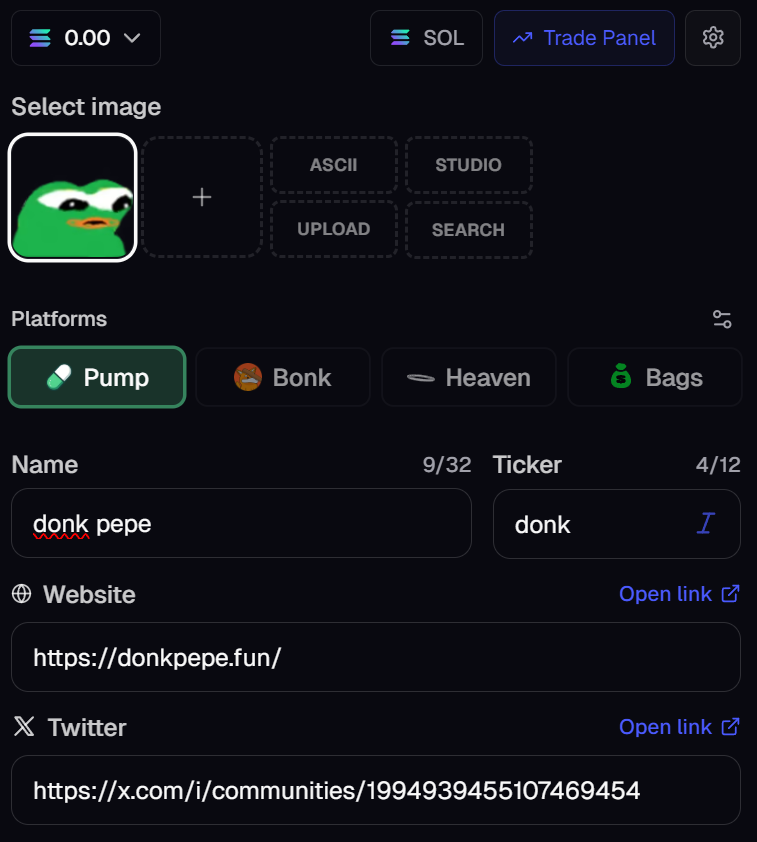
Within the **Creator Module**, you will be able to customize your coin’s name, ticker, images, links and choose where to launch on your coin via range of platforms/blockchains *(you can also hide which platforms you don't wish to see)*

<figure><img src="https://2665344143-files.gitbook.io/~/files/v0/b/gitbook-x-prod.appspot.com/o/spaces%2FmXvOrl9RSk6mBXFC961z%2Fuploads%2FzEGsKpH0vwHIL4j3OH40%2Fvisibleplats.png?alt=media&#x26;token=e8c3ae21-6d48-41bb-bb54-154e11064b19" alt="" width="563"><figcaption><p>Hide/Show Platforms</p></figcaption></figure>

Social links will be auto-populated using the corresponding post (when available), but can also be changed within the panel. Additionally, you can use a number of tools available in the uDev Toolbox such as a [Sniper/Bundler](#sniper-bundler), [Multi-Deploy](#multi-deploy-tokens), [Auto-Sell](#auto-sell-1) or any platform specific features.&#x20;

Simply fill out the fields, select which additional tools to use, input the SOL or token percentage amount you wish to buy (or use one of the handy, editable presets) and click '**Deploy**' to launch your coin; uDev will then create your coin. You can also save a draft of your coin by clicking the '**Save**' icon at the top of the uDev Creator Module next to the Settings button. \
\
[You can also launch coins via your Trading Platform, click here to learn how. ](#launch-coins-via-your-trading-platform)

<figure><img src="https://2665344143-files.gitbook.io/~/files/v0/b/gitbook-x-prod.appspot.com/o/spaces%2FmXvOrl9RSk6mBXFC961z%2Fuploads%2Fzyq6VqqILmYx2QSiCiPy%2Fimage.png?alt=media&#x26;token=d28a1ca9-dc62-4b4a-ab56-6077f1d7b1e1" alt="" width="282"><figcaption><p>Auto Populated Quick Launch Panel</p></figcaption></figure>

{% hint style="info" icon="circle-info" %}
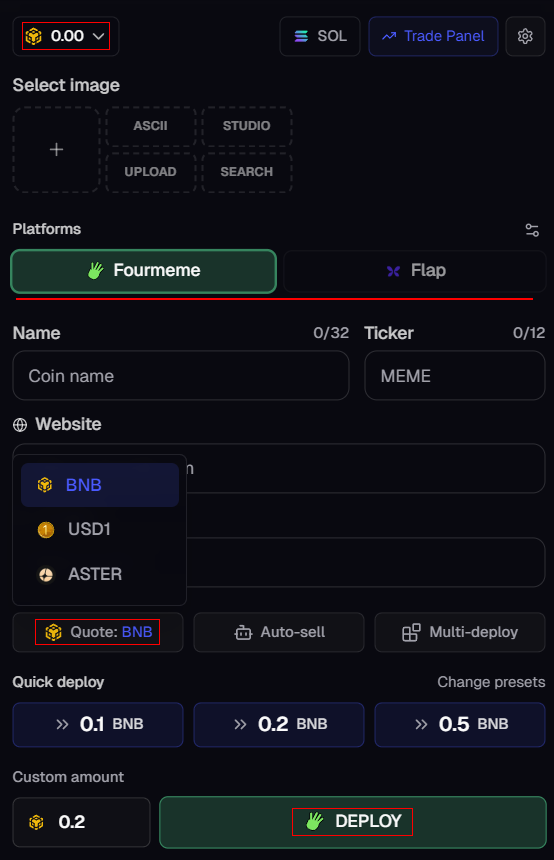
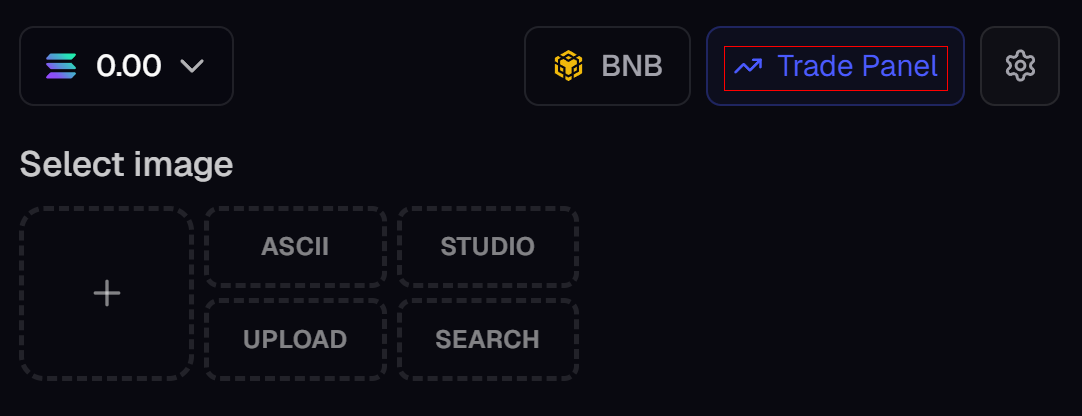
You may also use uDev to launch on a number of different blockchains including [BNB](#launch-coins-with-fourmeme-1), [Monad ](#launch-coins-on-monad)and [BASE ](#launch-coins-on-base)by clicking on the SOL toggle in the top left of the uDev Creator Module.
{% endhint %}

uDev's custom API boasts speeds under 100ms - making launching with uDev faster than any other platform - by far.

{% hint style="info" %}
As uxento continues to build, improve and update uDev - there may be a number of changes to the UI.
{% endhint %}

### How To Change Images in uDev:

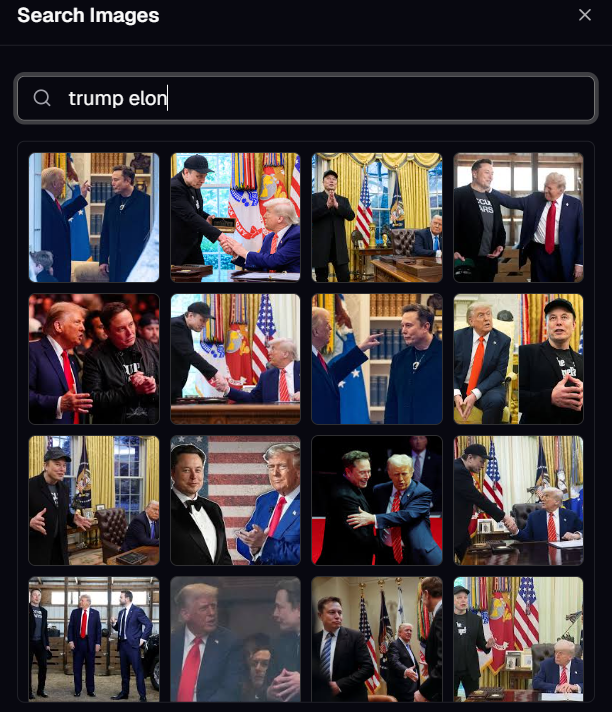
While Images are automatically scraped by uDev's launcher, you can also upload your own image by dragging and dropping your image to the plus, or clicking on the **Plus** button. When you click on the **Plus** button, you will have to option to upload your own custom images and save them for future launches in the **Image Library**. You may also bind images to Keywords for better filtering when searching your image library.&#x20;

<figure><img src="https://2665344143-files.gitbook.io/~/files/v0/b/gitbook-x-prod.appspot.com/o/spaces%2FmXvOrl9RSk6mBXFC961z%2Fuploads%2FLegGJ2nhXZ4K9zohvlPc%2Fimage.png?alt=media&#x26;token=f0f9b3f6-439c-4d3d-ae1e-eb5cefbcf475" alt=""><figcaption></figcaption></figure>

You may also use the search function to find custom images, simply search any keywords to search for any suitable images for your token.&#x20;

<figure><img src="https://2665344143-files.gitbook.io/~/files/v0/b/gitbook-x-prod.appspot.com/o/spaces%2FmXvOrl9RSk6mBXFC961z%2Fuploads%2FY8krOqsNeAAIIPd0dAsK%2Ftrumpelon.png?alt=media&#x26;token=2b009964-2344-49a8-8311-414954443a94" alt="" width="459"><figcaption><p>uDev's Image Library</p></figcaption></figure>

#### ASCII Art Generator:

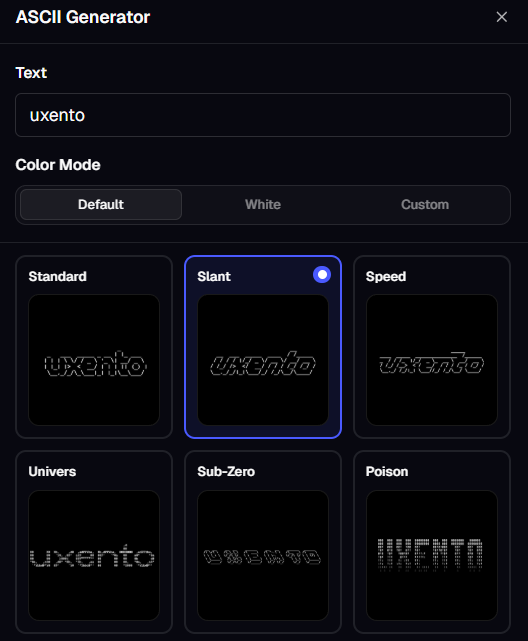
Additionally, you may also use the custom **ASCII Art Generator** within the uDev Creator Module to easily create ASCII Art for your coin. Simply click the **ASCII** button next to the Image Library in your uDev Creator Module.&#x20;

<figure><img src="https://2665344143-files.gitbook.io/~/files/v0/b/gitbook-x-prod.appspot.com/o/spaces%2FmXvOrl9RSk6mBXFC961z%2Fuploads%2FJWxZKAvaSAL4tlyLcSf8%2Fnewart.png?alt=media&#x26;token=640d5237-7c87-44f8-b12e-a98fc93d73de" alt="" width="563"><figcaption><p>ASCII Generator Button</p></figcaption></figure>

Clicking the **ASCII** button will take you to the ASCII Art Generator panel where you may enter your desired text and select one of nine **ASCII** style fonts as well as customize the background and text color.

<figure><img src="https://2665344143-files.gitbook.io/~/files/v0/b/gitbook-x-prod.appspot.com/o/spaces%2FmXvOrl9RSk6mBXFC961z%2Fuploads%2FhcwslU0pbaatyQSBGfFM%2Fascii.png?alt=media&#x26;token=9dfe1ded-6751-4b20-acb6-20ec1ada1344" alt="" width="396"><figcaption></figcaption></figure>

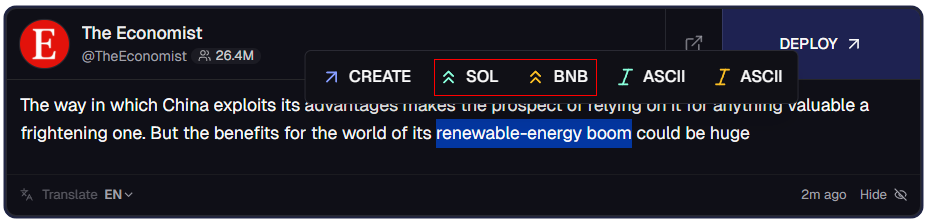
You may also [Quick Deploy](#quick-deploy) with ASCII art, simply highlight text on any page and click on ‘**ASCII**’.\
\
**Blue** =  Launch on SOL with Default ASCII.\
**Gold** = Launch on BNB with Default ASCII.\
**Purple/Blue** = Launch on SOL with Solana Gradient ASCII.

<figure><img src="https://2665344143-files.gitbook.io/~/files/v0/b/gitbook-x-prod.appspot.com/o/spaces%2FmXvOrl9RSk6mBXFC961z%2Fuploads%2F8wrZvlLPaszepv073amx%2Fascccc.png?alt=media&#x26;token=8fd69af5-3f54-44de-a209-0e4edc1e831a" alt=""><figcaption><p>Quick Deploy Launch Module</p></figcaption></figure>

#### **uDev Studio:**

You may also create quick custom artworks for your coins within the uDev Creator Module using **uDev Studio**. Simply click the '**Studio'** button next to the **Image Library** in your Launcher.

Clicking the **Studio** button will bring you to **uDev Studio**, a customizable, easy design editor to create images for your coins. Upload a base image or pick from the pre-selected gradient/solid backgrounds, and then customize further by using templates and/or emojis. Once complete, click the **Save & Use** button to finalize.

<figure><img src="https://2665344143-files.gitbook.io/~/files/v0/b/gitbook-x-prod.appspot.com/o/spaces%2FmXvOrl9RSk6mBXFC961z%2Fuploads%2FhA8TUh6PFvSXmi1a9IBR%2Fimage.png?alt=media&#x26;token=ef7200df-2d9b-41c6-a51a-671a4cefc5a0" alt="" width="440"><figcaption></figcaption></figure>

#### Previous Coins:

Clicking '**Previous**' will bring up past art from all tokens a user has created in the past. You may use this to recycle artwork or validate if an artwork has been used by you before.&#x20;

<figure><img src="https://2665344143-files.gitbook.io/~/files/v0/b/gitbook-x-prod.appspot.com/o/spaces%2FmXvOrl9RSk6mBXFC961z%2Fuploads%2FzCIms5uP6xxHSXlZjcHr%2Fimage.png?alt=media&#x26;token=54a1c0cd-857a-410c-a2a4-47df225ac5ea" alt="" width="543"><figcaption></figcaption></figure>

#### **AI Image Editor:**&#x20;

uDev comes complete with **AI Image Editing** to ensure you can quickly create the most unique artwork for your tokens on the fly. Simply click the **AI button** in the Image Toolbox via the uDev Creator Module, select or upload a photo to edit and describe your edit via prompt. Click **Generate** and select the best option to attach it to your token.&#x20;

<figure><img src="https://2665344143-files.gitbook.io/~/files/v0/b/gitbook-x-prod.appspot.com/o/spaces%2FmXvOrl9RSk6mBXFC961z%2Fuploads%2F6SjpZ5wPSE54uAwRgjFe%2Fimage.png?alt=media&#x26;token=9f4f2b1d-4009-4ba8-86b4-a3a8616c4ae8" alt=""><figcaption><p>AI Image Editor</p></figcaption></figure>

{% hint style="info" %}
AI Image Editing requires at least **10 coins deployed via uDev to use.**&#x20;
{% endhint %}

#### **AI Image Crop:**

With [AI Mode](#launch-coins-with-fourmeme) enabled, you may hover over any image in your AIO/Vision feed and get AI-suggested focal crops. Simply click on any of the highlighted crop suggestions and the uDev Creator Module will auto-crop and prefill with your selections. \
\
You can make further adjustments with the '**Manual Crop**' button.&#x20;

<figure><img src="https://2665344143-files.gitbook.io/~/files/v0/b/gitbook-x-prod.appspot.com/o/spaces%2FmXvOrl9RSk6mBXFC961z%2Fuploads%2FOg21G0wPRiDHTTASaway%2Fimage.png?alt=media&#x26;token=681de690-71e9-4bad-94fc-a97326c9451f" alt=""><figcaption><p>AI Image Crop</p></figcaption></figure>

**To learn more about how to customize images in uDev, you can watch the below video:**&#x20;

{% embed url="<https://youtu.be/4rsBtvTzv1M>" %}

### Vamp Coin:&#x20;

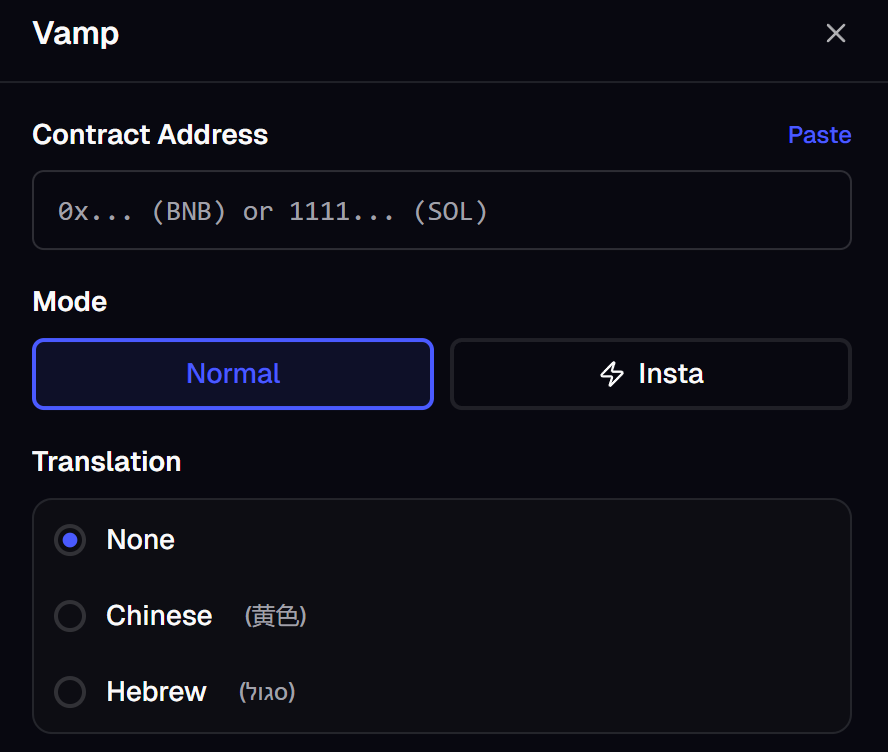
uDev also allows you to easily '**Vamp**' coins and create tokens based on another coin's contract address, instantly. This allows you to easily PvP other emerging coins in real time.&#x20;

<figure><img src="https://2665344143-files.gitbook.io/~/files/v0/b/gitbook-x-prod.appspot.com/o/spaces%2FmXvOrl9RSk6mBXFC961z%2Fuploads%2F134qcfhKp8jT0TIyyqsE%2FVamp.png?alt=media&#x26;token=6d5bee95-05d6-4242-8514-30e5c2e8f5f7" alt=""><figcaption><p>Vamp Coin Button</p></figcaption></figure>

To do this, simply click the **Vamp** button, next to the Create button, this will bring up a pop-up asking for the contract address of the coin you wish to vamp. Simply import the CA and uDev will retrieve all necessary information to launch so that only remaining thing you need to do is click **Create Coin**.

&#x20;[You can also Vamp Coins via your trading platform, click here to learn how. ](#launch-coins-via-your-trading-platform)

<figure><img src="https://2665344143-files.gitbook.io/~/files/v0/b/gitbook-x-prod.appspot.com/o/spaces%2FmXvOrl9RSk6mBXFC961z%2Fuploads%2FeQfFbNuhd5h5y0HTaY9U%2Fvamp2.png?alt=media&#x26;token=2b3e3dc9-ad88-48a4-a912-bf823e97db24" alt="" width="563"><figcaption><p>Import Any Contract Address to Vamp a Coin</p></figcaption></figure>

<figure><img src="https://2665344143-files.gitbook.io/~/files/v0/b/gitbook-x-prod.appspot.com/o/spaces%2FmXvOrl9RSk6mBXFC961z%2Fuploads%2FjzYTl3aQX9UfZyzr2Lvw%2FScreenshot%202025-08-06%20002853.png?alt=media&#x26;token=15e06d87-8669-4616-a621-c04b631e9f5a" alt="" width="350"><figcaption><p>uDev Retrieves All Necessary Data</p></figcaption></figure>

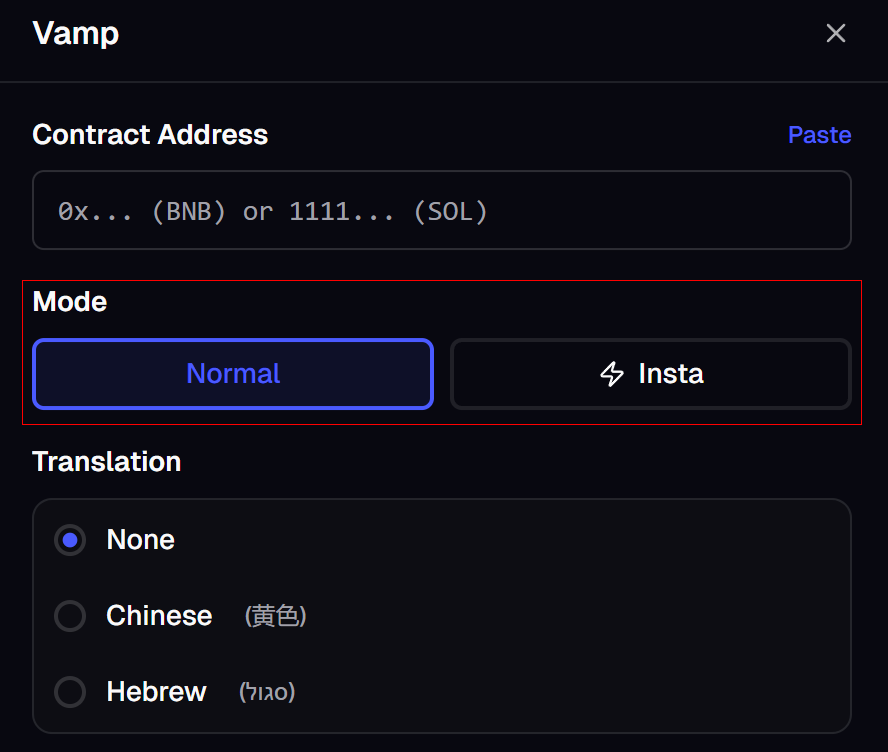
**Vamp Mode:**&#x20;

You may toggle your Vamp Coin creation mode between **Normal Vamp** and **Insta-Vamp**. When Insta-Vamp is enabled, uDev will instantly **Quick Deploy** coins when any CA is entered via your preferred launch platform using the designated Insta-Vamp Amount.

<figure><img src="https://2665344143-files.gitbook.io/~/files/v0/b/gitbook-x-prod.appspot.com/o/spaces%2FmXvOrl9RSk6mBXFC961z%2Fuploads%2FWSj6SOPCGLasp38HI2oj%2Fvampmode.png?alt=media&#x26;token=a474f493-4a5e-4cea-bacc-c4fe301399e5" alt="" width="563"><figcaption></figcaption></figure>

**Vamp Mode (Chinese/Hebrew):**&#x20;

uDev allows you to Vamp Coins in both Chinese and Hebrew.

Simply select which style you require under the Settings in Vamp Mode and then paste a CA. uDev will automatically translate the token into Chinese/Hebrew.

<div><figure><img src="https://2665344143-files.gitbook.io/~/files/v0/b/gitbook-x-prod.appspot.com/o/spaces%2FmXvOrl9RSk6mBXFC961z%2Fuploads%2FiQHcfJbim4CpFpJrZWAT%2Fvamp1.png?alt=media&#x26;token=716eb33c-9365-490d-97f9-bd47738efce6" alt="" width="375"><figcaption></figcaption></figure> <figure><img src="https://2665344143-files.gitbook.io/~/files/v0/b/gitbook-x-prod.appspot.com/o/spaces%2FmXvOrl9RSk6mBXFC961z%2Fuploads%2FfbytsTOlRcfywQjztved%2Fchinese.png?alt=media&#x26;token=fa4a9307-f252-49b8-97a4-2c70b5fe3844" alt="" width="375"><figcaption></figcaption></figure></div>

### Tweet Vamp Mode:&#x20;

You may also Vamp previous coins with new tweets attached with **Tweet Vamp Mode**. To do this, click the '**Search Token**' button next to any post in your tracker feed. Search any term to bring up related tokens for context and then use **Create** to open the uDev Creator Module with the name and ticker derived from your search text and tweet context.

<figure><img src="https://2665344143-files.gitbook.io/~/files/v0/b/gitbook-x-prod.appspot.com/o/spaces%2FmXvOrl9RSk6mBXFC961z%2Fuploads%2F5F5dIo26ZdDWaRImsWaC%2Fimage.png?alt=media&#x26;token=6760dfb3-a93a-475b-a72f-5b424627967f" alt="" width="500"><figcaption><p>Tweet Vamp Search</p></figcaption></figure>

### Quick Deploy:

The quickest and most efficient means of launching if you want to capitalize on trending memes/news is uDev's **Quick Deploy** feature. Quick Deploying can be done by highlighting any text from a tweet on your feed and clicking **Quick Deploy**. This will instantly launch a coin based on the highlighted text.&#x20;

<figure><img src="https://2665344143-files.gitbook.io/~/files/v0/b/gitbook-x-prod.appspot.com/o/spaces%2FmXvOrl9RSk6mBXFC961z%2Fuploads%2FgTdhK7p2Ha51vuvJHMHR%2Fquickdep.png?alt=media&#x26;token=677abcef-33e8-4057-b6e4-ecdd0b02f29a" alt=""><figcaption><p>Highlighting any Tweet Text in Uxento Vision will allow you to Quick Deploy.</p></figcaption></figure>

You can further customize your **Quick Deploy** Preset via the **User** panel in the global settings. Just navigate to the **Quick Deploy** panel and customize the SOL amount you wish to quick launch with.

<figure><img src="https://2665344143-files.gitbook.io/~/files/v0/b/gitbook-x-prod.appspot.com/o/spaces%2FmXvOrl9RSk6mBXFC961z%2Fuploads%2FUl6SgwzAPq7umRaRJmmm%2Fimage.png?alt=media&#x26;token=17f3bd36-5312-479a-be8d-b82fb1d95271" alt="" width="563"><figcaption><p>Quick Deploy Dev Settings</p></figcaption></figure>

Additionally, you may assign **Quick Deploy** presets with keyboard and mouse shortcuts. This allows you to quickly set name templates for Quick Deploy tokens.&#x20;

<figure><img src="https://2665344143-files.gitbook.io/~/files/v0/b/gitbook-x-prod.appspot.com/o/spaces%2FmXvOrl9RSk6mBXFC961z%2Fuploads%2FjZcnaQdIdmTJ4izCoRW6%2Fimage.png?alt=media&#x26;token=20090f67-a967-4316-8fe6-1576252173eb" alt="" width="563"><figcaption><p>Quick Deploy Presets</p></figcaption></figure>

You may also customize the preset for uDev **Deploy** buttons across your Vision/AIO Feed within the Quick Deploy panel, just select your default platform and fee type to save as default.&#x20;

<figure><img src="https://2665344143-files.gitbook.io/~/files/v0/b/gitbook-x-prod.appspot.com/o/spaces%2FmXvOrl9RSk6mBXFC961z%2Fuploads%2FrnDSZ7BeJFWCofXpxZRX%2Fimage.png?alt=media&#x26;token=cf925885-4c11-4042-a467-e9042e01d041" alt="" width="563"><figcaption><p>Insta Deploy Settings</p></figcaption></figure>

**To view a live demo of Quick Deploy, you can watch the below video:**

{% embed url="<https://www.youtube.com/watch?v=EUDUVwbzKIE>" %}

### AI Mode: <a href="#launch-coins-with-fourmeme" id="launch-coins-with-fourmeme"></a>

You may enable an AI Mode to access an extended range of AI assisted tools to help with deploying from your AIO/Vision feed by enabling AI Mode in the AIO Header Tab.&#x20;

<figure><img src="https://2665344143-files.gitbook.io/~/files/v0/b/gitbook-x-prod.appspot.com/o/spaces%2FmXvOrl9RSk6mBXFC961z%2Fuploads%2FyaWFDUaQzTTDV2Wt63ZJ%2Fimage.png?alt=media&#x26;token=6054fc9c-f4fd-4b6b-9aa4-ad2ffc2f8f9a" alt=""><figcaption></figcaption></figure>

#### AI Quick Suggestions:

One notable tool in uxento's AI mode is **AI Quick Suggestions.** When using the AI Suggestions Feed in AIO, new posts will render up to three token suggestions, each with an auto-generated name and ticker based on the source tweet. You may click into any suggestion to deploy from the side-panel, or fine-tune the token in the uDev Creator Module.

<figure><img src="https://2665344143-files.gitbook.io/~/files/v0/b/gitbook-x-prod.appspot.com/o/spaces%2FmXvOrl9RSk6mBXFC961z%2Fuploads%2FunP37xI8RsO7LVb3pxMq%2Fimage.png?alt=media&#x26;token=2b10dc5f-7dd5-4616-beea-a6e7e0010313" alt=""><figcaption></figcaption></figure>

You may also click the '**Collapse**' icon in the Side-Panel to fold the AI Suggestions directly into the AIO feed below respective posts or you can adjust the position, model and fine tune certain **AI Suggestion** settings within the AI Panel to ensure the strongest results.&#x20;

<div align="center" data-full-width="false"><figure><img src="https://2665344143-files.gitbook.io/~/files/v0/b/gitbook-x-prod.appspot.com/o/spaces%2FmXvOrl9RSk6mBXFC961z%2Fuploads%2F8yp3mXbgBlzum1YKDHNM%2Fimage.png?alt=media&#x26;token=e64d0e79-76a3-4acb-8b52-dcce7489737a" alt="" width="186"><figcaption></figcaption></figure></div>

{% hint style="info" %}
[uxento offers a range of Automation features to assist in more efficient workflows when deploying tokens, to learn more click here. ](https://uxento.gitbook.io/uxento/tools/automations)
{% endhint %}

### Bwam:  <a href="#launch-coins-with-fourmeme" id="launch-coins-with-fourmeme"></a>

**Bwam** is an AI model specifically developed by uxento to be the best taste when deploying tokens. **Bwam** is trained only on tokens launched by Solana's notorious '*bwam*...' wallet, responsible for 70,000+ tokens with over $7m in profit. AI Suggestions use the '**Normal**' model by default which is trained on a broad dataset compared to **Bwam** which strives to deploy coins inspired by bwam's deploys. **Bwam** can be enabled in the AI Mode settings panel accessible from your AIO tab.&#x20;

{% hint style="info" %}
[Bwam is also available for AI Deployment via Automations.](https://uxento.gitbook.io/uxento/automations#ai-deploy)
{% endhint %}

### Tweet & Deploy: <a href="#launch-coins-with-fourmeme" id="launch-coins-with-fourmeme"></a>

You may connect your X account to post directly from your uxento feed, and simultaneously deploy a coin based on that tweet. To do so, click the Tweet button in the top right of your homepage, connect your X account and script your tweet as desired.&#x20;

<figure><img src="https://2665344143-files.gitbook.io/~/files/v0/b/gitbook-x-prod.appspot.com/o/spaces%2FmXvOrl9RSk6mBXFC961z%2Fuploads%2Feuae7MSJ4CRsN2Fl0u7F%2Fimage.png?alt=media&#x26;token=88f6a49b-9142-4579-b2a1-8bcaaf4fd709" alt=""><figcaption></figcaption></figure>

You may upload images, add extra URLs and set a vanity address for your token. Once finished, continue to deploy to adjust your token settings in the uDev Creator Module and your tweet will be attached to the token on launch. <br>

<figure><img src="https://2665344143-files.gitbook.io/~/files/v0/b/gitbook-x-prod.appspot.com/o/spaces%2FmXvOrl9RSk6mBXFC961z%2Fuploads%2FAl4whPbCEguxQpsKj4m0%2Fimage.png?alt=media&#x26;token=4b435261-8674-4b05-bf66-fdaf00ce99e2" alt=""><figcaption><p>Tweet Manager Panel</p></figcaption></figure>

### Whitelist Accounts: <a href="#launch-coins-with-fourmeme" id="launch-coins-with-fourmeme"></a>

uDev also allows you to **Whitelist Accounts** to specific launchpads. When that account tweets, uDev will **Quick Deploy** via that launchpad.

To Whitelist Accounts, simply navigate to the **Settings** panel, and under the **User** settings find **'Whitelist Accounts'**. You may then search X usernames under any launchpad to Whitelist an account to that launchpad.&#x20;

<figure><img src="https://2665344143-files.gitbook.io/~/files/v0/b/gitbook-x-prod.appspot.com/o/spaces%2FmXvOrl9RSk6mBXFC961z%2Fuploads%2FWlSHI5FWfyA7eystHILN%2Fimage.png?alt=media&#x26;token=2113d1e4-0550-4dba-831c-1a8ab982a982" alt=""><figcaption><p>Whitelist Accounts Panel</p></figcaption></figure>

**To learn more about configuring Whitelist Accounts, you can watch the below video:**&#x20;

{% embed url="<https://youtu.be/C-cFR6wU1Ds>" %}

### Pumpfun Fee Sharing:&#x20;

When deploying via **Pump**, you may share Creator Fees with up to 10 selected users. To do this, simply click **Fee Split** *(This option will only appear when launching with Pump)* and input the wallet addresses or Github usernames you wish to share fees with, and the percentage you wish to designate to each wallet. You may also click '**Split Evenly**' to distribute fees evenly among all wallets. You may also add accounts as **Quick Presets** to store them for future launches.  \
\
You may also share fees to Charity. To do so, simply click the Charity button to share fees with any supported charity, just search for your preferred cause using the drop down and apply.&#x20;

<figure><img src="https://2665344143-files.gitbook.io/~/files/v0/b/gitbook-x-prod.appspot.com/o/spaces%2FmXvOrl9RSk6mBXFC961z%2Fuploads%2FakNXbBV3Z6KMO3cjfqHy%2Ffeecharity.png?alt=media&#x26;token=737f6b1b-ea58-41e8-956e-311db81bb665" alt="" width="526"><figcaption></figcaption></figure>

{% hint style="info" %}
You can toggle on **'Lock Fee Authority'** to permanently revoke your ability to change fee recipients. Please note this is **irreversible**.
{% endhint %}

### Agent Mode:

Agent Mode allows your launch to use Pumpfun Agent; Pumpfun's agentic buyback feature to designate 100% of creator trading fees toward automatically buying back & burning tokens on a recurring schedule. You may enable this at the bottom of the Fee Sharing configuration panel.&#x20;

<figure><img src="https://2665344143-files.gitbook.io/~/files/v0/b/gitbook-x-prod.appspot.com/o/spaces%2FmXvOrl9RSk6mBXFC961z%2Fuploads%2F7S9ceZWkbYYm7tKZUGVH%2Fimage.png?alt=media&#x26;token=046e7d79-b581-4b81-858f-52e9119b7001" alt=""><figcaption></figcaption></figure>

{% hint style="warning" %}
When enabling Agent Mode, Lock Fee Authority is mandatory.&#x20;
{% endhint %}

### BagsApp Fee Sharing:

uDev also supports the deployment of tokens via **BagsApp**.&#x20;

To do this, simply click **Bags** as your preferred platform in the uDev Creation Module.&#x20;

<figure><img src="https://2665344143-files.gitbook.io/~/files/v0/b/gitbook-x-prod.appspot.com/o/spaces%2FmXvOrl9RSk6mBXFC961z%2Fuploads%2FHoZfbswwNhlgp2K0wc01%2Fbaggs.png?alt=media&#x26;token=07ce4cf4-14b2-4436-850b-23600e5dfc75" alt=""><figcaption></figcaption></figure>

BagsApp is unique in its ability to may define your fee split and share rewards with up to 100 specified account/s. To do this, click the **'Bags Fee'** button, and click **'Add Claimer'** to input the username of any creator you wish to split the fees with. You may then define the percentage amount you wish to share with that creator.&#x20;

{% hint style="info" %}
BagsApp supports sharing with creators on X, TikTok, Kick, Github and with OpenClaw agents.&#x20;
{% endhint %}

<figure><img src="https://2665344143-files.gitbook.io/~/files/v0/b/gitbook-x-prod.appspot.com/o/spaces%2FmXvOrl9RSk6mBXFC961z%2Fuploads%2FAqgRWnzKy9l3QdqNNUkU%2Fnewbags.png?alt=media&#x26;token=a63d49a2-6d3a-4306-b4e8-8c7c6bcb78dc" alt=""><figcaption><p>Fee Share Panel</p></figcaption></figure>

You may also save frequently used accounts for one-click adding by adding usernames under **'Saved Accounts'.** Simply click the Add icon to include them in any future fee splits. Launches via **BagsApp** are also compatible with uDev features such as [Sniper/Bundler](#sniper-bundler) and [Auto-Sell.](#auto-sell)

<figure><img src="https://2665344143-files.gitbook.io/~/files/v0/b/gitbook-x-prod.appspot.com/o/spaces%2FmXvOrl9RSk6mBXFC961z%2Fuploads%2FxWr7P6GL3JXLyyE8d53W%2Ffeeshare.png?alt=media&#x26;token=8c442cf7-bd34-4b21-915c-c0339bc4a7af" alt=""><figcaption><p>Saved Accounts</p></figcaption></figure>

{% hint style="success" %}
**uDev supports deploying on Bags with 0% fees to allow 100% of fees to be split.**&#x20;
{% endhint %}

### Launch Coins On BNB/MON/BASE/ETH:

uDev also supports the deployment of tokens to a number of alternative blockchain via a range of launchpad&#x73;**. To learn more about launching on BNB/MON/BASE/ETH, just expand the relevant section:**

<details>

<summary>Launch Coins on BNB</summary>

uDev also supports the deployment of tokens to the **BNB** blockchain via **FourMeme/Flap.**&#x20;

To do this, simply click the SOL/BNB toggle in the top left of the uDev Creator Module to configure BNB launches. Simply fill in the fields and launch your coin on BNB as you would on any SOL launchpad via uDev. Launches via BNB can be supported by BNB, Aster or USD1 and allow uDev features such as [multi/cross-deploy](#multi-deploy-tokens) and [auto-sell](#auto-sell) in addition to FourMeme platform features such as Agent Mode.&#x20;

[To exchange seemlessly between SOL/BNB you can use Uxento Bridge via your Portfolio.](https://uxento.gitbook.io/uxento/portfolio#bridge)

{% hint style="info" %}
uDev also supports launching with **UPair (United Stables)** via FourMeme if you are already holding UPair tokens in your wallet.&#x20;
{% endhint %}

<figure><img src="https://2665344143-files.gitbook.io/~/files/v0/b/gitbook-x-prod.appspot.com/o/spaces%2FmXvOrl9RSk6mBXFC961z%2Fuploads%2FriAe22d6fviizyG1HYaj%2Fbnbudev.png?alt=media&#x26;token=0f7e94e9-2819-4f67-bd61-11d341471383" alt=""><figcaption></figcaption></figure>

</details>

<details>

<summary>Launch Coins on Monad</summary>

uDev also supports the deployment of tokens to the **Monad** blockchain via **nad.fun/Flap.**&#x20;

To do this, simply click the currency toggle in the top left of the uDev Creator Module to configure MON launches. Simply fill in the fields and launch your coin on MON as you would on any SOL launchpad via uDev. Launches via Monad allow uDev features such as [multi/cross-deploy](#multi-deploy-tokens).&#x20;

[To exchange seamlessly between SOL/Monad you can Split Crypto via your Portfolio](https://uxento.gitbook.io/uxento/portfolio#split-crypto).

<figure><img src="https://2665344143-files.gitbook.io/~/files/v0/b/gitbook-x-prod.appspot.com/o/spaces%2FmXvOrl9RSk6mBXFC961z%2Fuploads%2FdhqxyjUHS5FcEZJZnHio%2Fimage.png?alt=media&#x26;token=60293afb-eac3-4d5f-a65e-1d69e966add8" alt="" width="416"><figcaption><p>Monad Creator Module</p></figcaption></figure>

</details>

<details>

<summary>Launch Coins on BASE</summary>

uDev also supports the deployment of tokens to the **BASE** blockchain via **Clanker.**&#x20;

To do this, simply click the currency toggle in the top left of the uDev Creator Module to configure BASE launches. Simply fill in the fields and launch your coin on BASE as you would on any SOL launchpad via uDev. Launches via **BASE** allow uDev features such as [multi/cross-deploy](#multi-deploy-tokens) and [auto-sell.](#auto-sell)

[To exchange seamlessly between SOL/BASE you can Split Crypto v](https://uxento.gitbook.io/uxento/portfolio#split-crypto)[ia your Portfolio](https://uxento.gitbook.io/uxento/portfolio#split-crypto).

<figure><img src="https://2665344143-files.gitbook.io/~/files/v0/b/gitbook-x-prod.appspot.com/o/spaces%2FmXvOrl9RSk6mBXFC961z%2Fuploads%2FMKEdIJ181ATrSyc4Jsqg%2Fimage.png?alt=media&#x26;token=7a6a96b5-1147-4b1a-8397-dd2361353517" alt="" width="421"><figcaption></figcaption></figure>

</details>

<details>

<summary><strong>Launch Coins on ETH</strong></summary>

uDev also supports the deployment of tokens to the **Ethereum** blockchain via **Stroid.**&#x20;

To do this, simply click the currency toggle in the top left of the uDev Creator Module to configure Ethereum launches. Simply fill in the fields and launch your coin on Ethereum as you would on any SOL launchpad via uDev. Launches via **ETH** allow uDev features such as [multi/cross-deploy](#multi-deploy-tokens) and [auto-sell.](#auto-sell)

[To exchange seamlessly between SOL/ETH you can Split Crypto v](https://uxento.gitbook.io/uxento/portfolio#split-crypto)[ia your Portfolio](https://uxento.gitbook.io/uxento/portfolio#split-crypto).

<figure><img src="https://2665344143-files.gitbook.io/~/files/v0/b/gitbook-x-prod.appspot.com/o/spaces%2FmXvOrl9RSk6mBXFC961z%2Fuploads%2Fb34ib18quUduAd6S7SsL%2Fimage.png?alt=media&#x26;token=05197812-ad7a-4a5a-a719-e593ed20eb9f" alt="" width="418"><figcaption></figcaption></figure>

</details>

To learn more about the numerous platforms uDev supports, you can watch the below video:&#x20;

{% embed url="<https://youtu.be/Mg0tWnYdaJg>" %}

### Change Coin Description:

When launching a coin with uDev, you can easily customize the description of your token or remove uxento branding entirely. To do this easily, click the '**Description'** panel within the uDev Creator Module. Input your desired description text, toggle uxento branding on or off and then deploy as usual.&#x20;

<figure><img src="https://2665344143-files.gitbook.io/~/files/v0/b/gitbook-x-prod.appspot.com/o/spaces%2FmXvOrl9RSk6mBXFC961z%2Fuploads%2FNU4UkGXpIR6H0MlSHWsB%2FDESCRIPT.png?alt=media&#x26;token=c4b48890-15ad-484a-a8ef-8466e0ab93e7" alt=""><figcaption><p>Coin Description Panel</p></figcaption></figure>

#### Edit Metadata:

You may also set a global description in the **Settings**. To configure this, navigate to **User Settings** and open the **Metadata** panel. From there, you can disable branding entirely using the toggle, or define custom text that will be applied as the default description for all future tokens.

<figure><img src="https://2665344143-files.gitbook.io/~/files/v0/b/gitbook-x-prod.appspot.com/o/spaces%2FmXvOrl9RSk6mBXFC961z%2Fuploads%2F9lbyTBaeuk5XJCLDHB4O%2Fimage.png?alt=media&#x26;token=e721eff9-1830-4ad0-b68c-742ed61fc947" alt=""><figcaption></figcaption></figure>

**To learn more about configuring your tokens Metadata, you can watch the below video:**

{% embed url="<https://youtu.be/686CR3Iq8RE>" %}

### View and Claim Fees:

You can view your active creator fees and claim SOL/USD1 rewards from your deployments. To do this, simply navigate to the **User** settings panel and click '**Earnings'** to view active fee positions from several launchpads. Click the **Claim** icon to withdraw any stored funds. &#x20;

<figure><img src="https://2665344143-files.gitbook.io/~/files/v0/b/gitbook-x-prod.appspot.com/o/spaces%2FmXvOrl9RSk6mBXFC961z%2Fuploads%2FtVUP7PDZBq2z0Hn6LYbg%2Fimage.png?alt=media&#x26;token=d3d3e9ea-3ff2-4d19-b9d9-206741f42288" alt=""><figcaption></figcaption></figure>

**To view a live claim via the Earnings panel, you can watch the below video:**&#x20;

{% embed url="<https://youtu.be/zpbg8lNBPyI>" %}

### Launch Coins via Your Trading Platform:

While using [uxtension](https://uxento.gitbook.io/uxento/tools/uxtension) on your trading platform, you will also be able to employ uDev's launcher to easily launch coins without leaving your trading platforms. When using Axiom and other supported platforms you will find a new option to either **'Create Coin'** or **'Vamp Coin'**.

<figure><img src="https://2665344143-files.gitbook.io/~/files/v0/b/gitbook-x-prod.appspot.com/o/spaces%2FmXvOrl9RSk6mBXFC961z%2Fuploads%2FnN4J6cEoysgFcHRBlnuZ%2Faxiom.png?alt=media&#x26;token=14e78857-ef73-4f36-b842-443c86e3d5b3" alt=""><figcaption><p>uDev Buttons on Axiom</p></figcaption></figure>

Clicking both [Create Coin](#how-to-launch-coins-with-udev) or [Vamp Coin ](#vamp-coin)will bring up the associated uDev Launch Panel. Just fill out the necessary fields and launch your coin.&#x20;

You may also Vamp directly from your Axiom Pulse cards. Simply click the '**Vamp**' Button under the token info to be taken to the uDev Launcher.&#x20;

<figure><img src="https://2665344143-files.gitbook.io/~/files/v0/b/gitbook-x-prod.appspot.com/o/spaces%2FmXvOrl9RSk6mBXFC961z%2Fuploads%2FR5zALRW0sS06XCvOH424%2Fvampwhite.png?alt=media&#x26;token=88e2c5d3-0aa0-4487-8c02-d75b8453a7b9" alt=""><figcaption><p>Pulse Vamp Button</p></figcaption></figure>

### Buy/Sell with uDev:

You may also use uDev to conduct your dev buy/sell trades with only a 0.75% fee (most platforms utilize a 1% fee) when creating your token. To do so ensure the **Trade** toggle is enabled in your uDev Creator Module.

<figure><img src="https://2665344143-files.gitbook.io/~/files/v0/b/gitbook-x-prod.appspot.com/o/spaces%2FmXvOrl9RSk6mBXFC961z%2Fuploads%2FucNl935YiZYdgflZu5zW%2Ftrades.png?alt=media&#x26;token=1283b477-64e0-41f7-b103-5b212d91f60c" alt=""><figcaption><p>Trade Coin can be Toggled Off/On</p></figcaption></figure>

You can adjust your buy/sell tips and slippage via the Dev Mode panel under the settings tab.&#x20;

#### Trade Panel:

You can easily view and manage tokens held within your uDev Wallets via the Trades panel.&#x20;

<figure><img src="https://2665344143-files.gitbook.io/~/files/v0/b/gitbook-x-prod.appspot.com/o/spaces%2FmXvOrl9RSk6mBXFC961z%2Fuploads%2F35hcWyD9brkMwrVXZ8l5%2Ftradespan.png?alt=media&#x26;token=b918ad78-9fe3-471d-bce3-7ab87688ef2f" alt=""><figcaption></figcaption></figure>

Within the uDev Trades Panel you may view all necessary token information as well as access Quick Buy/Sell buttons to quickly execute trades. The **Trades Panel** also features a chart with live data via TradingView which you can show/hide at any time.&#x20;

<figure><img src="https://2665344143-files.gitbook.io/~/files/v0/b/gitbook-x-prod.appspot.com/o/spaces%2FmXvOrl9RSk6mBXFC961z%2Fuploads%2FSee0Wx1HKZKRhEtxoest%2Ftradespanel.png?alt=media&#x26;token=fd125280-b8bc-4ecb-b613-f455c61b85d4" alt=""><figcaption></figcaption></figure>

You may also view any active or past deployed tokens by clicking the '**Deploys**' button in the bottom left of your homepage.

You can also swap the look of your **Trades Panel**, if you prefer a more slim-line, compact view for your Trades Panel, you can click '**New**' to enable. You can change back to the '**Classic**' view at any time.&#x20;

{% hint style="info" %}
Trading via uDev also supports alternate blockchains such as Ethereum and BASE.
{% endhint %}

**To learn more about trading with uDev, you can watch the below video:**&#x20;

{% embed url="<https://youtu.be/4iAcWnYlpFo>" %}

#### Generate uDev PNL:

Within the Trades Panel you may also generate custom uDev PNL cards for tokens you've held or created. To do this, simply click the **Profit** button in the token overview.&#x20;

<figure><img src="https://2665344143-files.gitbook.io/~/files/v0/b/gitbook-x-prod.appspot.com/o/spaces%2FmXvOrl9RSk6mBXFC961z%2Fuploads%2FjDTLymhL3XVjceO8pMZz%2Fpnlgen.png?alt=media&#x26;token=34571b91-4856-409d-9c09-9279508f6434" alt="" width="549"><figcaption><p>Clicking the Profit button will generate a PNL for that token</p></figcaption></figure>

Your generated uPNL gives a number of personalization options including five preset backgrounds and color customization. You may also upload your own custom images using the upload icon in the bottom left of your uPNL.&#x20;

<figure><img src="https://2665344143-files.gitbook.io/~/files/v0/b/gitbook-x-prod.appspot.com/o/spaces%2FmXvOrl9RSk6mBXFC961z%2Fuploads%2FVrYsGueoziEILgz6Q3EG%2Fpnl222.png?alt=media&#x26;token=69cbbcc2-84c5-44c4-bd86-8702c4c7501d" alt=""><figcaption><p>uPNL</p></figcaption></figure>

{% hint style="info" %}
By clicking the USD/SOL toggle in the top left of your generated PNL card you can swap the displayed currency of your PNL!
{% endhint %}

### Custom uDev Priority Fees:

You may also customize your **'Create Coin'** priority fee for faster execution. This can be done via the **User** settings panel in Uxento Vision under the '**Transactions**' settings.

<figure><img src="https://2665344143-files.gitbook.io/~/files/v0/b/gitbook-x-prod.appspot.com/o/spaces%2FmXvOrl9RSk6mBXFC961z%2Fuploads%2F3ftyxAtb2WmnTsWrwqN4%2Fteransaction.png?alt=media&#x26;token=ea93416f-2ac9-4415-aa4c-d78bd1571694" alt=""><figcaption><p>Coin Creation Settings</p></figcaption></figure>

**To learn more about changing your 'Transactions' settings, you can watch the video below:**&#x20;

{% embed url="<https://youtu.be/9KDInI3QRcc>" %}

### Sniper/Bundler: <a href="#sniper-bundler" id="sniper-bundler"></a>

uxento also comes complete with a **Sniper** and **Bundler** for developers who use multiple wallets linked to uDev when launching coins.

To configure this, simply click on the **Snipe/Bundle** Configuration Button to use either tool.

<figure><img src="https://2665344143-files.gitbook.io/~/files/v0/b/gitbook-x-prod.appspot.com/o/spaces%2FmXvOrl9RSk6mBXFC961z%2Fuploads%2FsP728xtEI76MDMWX1w4r%2Fdeactivesnipe.png?alt=media&#x26;token=769ed260-44c0-4614-bbe7-400112497023" alt=""><figcaption><p>Sniper/Bundle Configuration Button</p></figcaption></figure>

Within the configuration settings you may select which wallets you wish to use to **Snipe/Bundle** with as well as customize the currency amount that wallet will use when executing transactions, you may also use the quick **Amount Presets** (with automatic fee reservation).

<div><figure><img src="https://2665344143-files.gitbook.io/~/files/v0/b/gitbook-x-prod.appspot.com/o/spaces%2FmXvOrl9RSk6mBXFC961z%2Fuploads%2FYchDcBPi97OBG0DheBHR%2Fsnip1.png?alt=media&#x26;token=1c357355-6698-4dc5-a7ef-d6bf47086eef" alt=""><figcaption></figcaption></figure> <figure><img src="https://2665344143-files.gitbook.io/~/files/v0/b/gitbook-x-prod.appspot.com/o/spaces%2FmXvOrl9RSk6mBXFC961z%2Fuploads%2FeoHvkjMYeOVJQ1teTie0%2F2.png?alt=media&#x26;token=92a2748a-6203-4e75-9ed3-e6d2f984df6e" alt=""><figcaption></figcaption></figure></div>

{% hint style="info" %}
You can click the 'Expanded View' icon to bring up a full-screen Bundler/Sniper UI for better visibility.&#x20;
{% endhint %}

<figure><img src="https://2665344143-files.gitbook.io/~/files/v0/b/gitbook-x-prod.appspot.com/o/spaces%2FmXvOrl9RSk6mBXFC961z%2Fuploads%2FCfm0iWgAUU3VAF39sHI3%2Fexpviewbund.png?alt=media&#x26;token=203a1f2b-d433-4ac9-b4b8-6947b1f7ab95" alt=""><figcaption><p>Expanded Bundler/Sniper UI</p></figcaption></figure>

While active, the **Configuration** icon in your uDev Creator Module will be highlighted, displaying the active tool.

<div><figure><img src="https://2665344143-files.gitbook.io/~/files/v0/b/gitbook-x-prod.appspot.com/o/spaces%2FmXvOrl9RSk6mBXFC961z%2Fuploads%2FNU9RuXo4NPfPKSJaHX7e%2Fsnipeee.png?alt=media&#x26;token=65c0b49c-2f78-492e-a801-ee079cb68bc6" alt="" width="285"><figcaption></figcaption></figure> <figure><img src="https://2665344143-files.gitbook.io/~/files/v0/b/gitbook-x-prod.appspot.com/o/spaces%2FmXvOrl9RSk6mBXFC961z%2Fuploads%2Fxzj9cgSzhAu4TJNcvCNc%2Fbungle.png?alt=media&#x26;token=0cd45cd0-37d8-4516-b50d-bc74d800f2bb" alt="" width="285"><figcaption></figcaption></figure></div>

<figure><img src="https://2665344143-files.gitbook.io/~/files/v0/b/gitbook-x-prod.appspot.com/o/spaces%2FmXvOrl9RSk6mBXFC961z%2Fuploads%2FucK5cYMAYbxAIAgdrRki%2F1b%2B1s.png?alt=media&#x26;token=1d09749e-e483-4fd3-935d-c6e46d258c37" alt="" width="285"><figcaption></figcaption></figure>

The **Sniper** and **Bundler** can also be used simultaneously with different wallets. Just configure both tools as desired and they will work together when deploying a token. Selecting both tools triggers a reminder that explains the combined behavior, and your configuration button will reflect both tools in use and the number of wallets associated with that tool. You may use up to 10 wallets with the bundler, and 9 wallets with the sniper.&#x20;

You can save Sniper/Bundler configurations as presets for more efficiency when launching tokens. Simply click '**Save Current**' at the top of the Sniper/Bundler panel to save presets.&#x20;

<figure><img src="https://2665344143-files.gitbook.io/~/files/v0/b/gitbook-x-prod.appspot.com/o/spaces%2FmXvOrl9RSk6mBXFC961z%2Fuploads%2FlS1PxvWmBl1yzPMRv0e7%2Fimage.png?alt=media&#x26;token=f2f0be38-746f-4c77-9b18-cc3830398c7e" alt=""><figcaption></figcaption></figure>

[You may also enable **Auto-Sell** for your **Sniper/Bundler** via the Auto-Sell configuration.](#auto-sell)

{% hint style="info" %}
When using the combined Sniper/Bundler, you must use different wallets between tools. [To create new wallets, visit Portfolio.](https://uxento.gitbook.io/uxento/portfolio)
{% endhint %}

You may additionally configure the **Auto-Sniper** for autmatically buying detected tokens via the [**Automations** ](https://uxento.gitbook.io/uxento/tools/automations)panel. Simply navigate to the '**Traders**' tab under '**Automations'** to configure.&#x20;

**To see a live demo of the Sniper/Bundler, you can watch the below video:**&#x20;

{% embed url="<https://youtu.be/1ZC4a8Ew0bA>" %}

### Multi-Deploy Tokens: <a href="#multi-deploy-tokens" id="multi-deploy-tokens"></a>

When launching coins, you may easily deploy multiple of the same token. To do this, simply click on the **Multi-Deploy** button in your uDev Creator Module.

<figure><img src="https://2665344143-files.gitbook.io/~/files/v0/b/gitbook-x-prod.appspot.com/o/spaces%2FmXvOrl9RSk6mBXFC961z%2Fuploads%2FCf2CuMM6wOAvMZe7mYE0%2Fmutlidep.png?alt=media&#x26;token=aed7bcc2-f029-4b73-8262-ec1af872dba6" alt=""><figcaption><p>Multi-Deploy Settings</p></figcaption></figure>

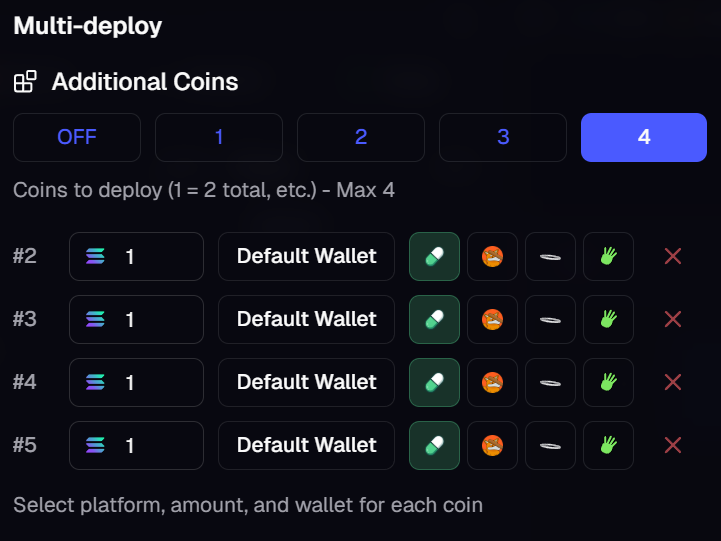
Once you are in the **Multi-Deploy** settings you may set how many additional coins you wish to deploy (up to four), and the amounts for each multi-coin.

<figure><img src="https://2665344143-files.gitbook.io/~/files/v0/b/gitbook-x-prod.appspot.com/o/spaces%2FmXvOrl9RSk6mBXFC961z%2Fuploads%2F1J82bpyDmK1pj8YTlQG9%2Fmtuli.png?alt=media&#x26;token=57d2331c-494d-4197-8e73-27254329cabf" alt=""><figcaption><p>Multi-Deploy Active with 4 Additional Coins</p></figcaption></figure>

While active, the **Multi-Deploy** icon in your uDev Creator Module will be highlighted, displaying the number of additional coins you wish to deploy.

<figure><img src="https://2665344143-files.gitbook.io/~/files/v0/b/gitbook-x-prod.appspot.com/o/spaces%2FmXvOrl9RSk6mBXFC961z%2Fuploads%2Fjv8fm5USXdEklnJk56kx%2Fmutlidepactive.png?alt=media&#x26;token=1d42bd25-53c3-4f73-b41b-bd58d65afc29" alt="" width="413"><figcaption></figcaption></figure>

**Cross-Deploy:**

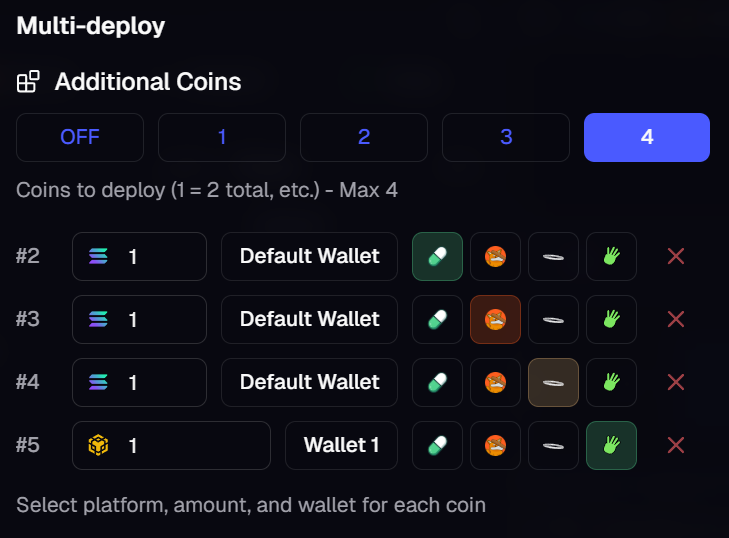
Additionally, you may also launch multiple coins simultaneously across different launchpads. When refining your **Multi-Deploy** settings, you will also see an option to launch via another platform - simply select which platforms you wish to launch with.

<figure><img src="https://2665344143-files.gitbook.io/~/files/v0/b/gitbook-x-prod.appspot.com/o/spaces%2FmXvOrl9RSk6mBXFC961z%2Fuploads%2F2VAquLPBUEeFVKpANlTe%2Fcross.png?alt=media&#x26;token=74e7d7b9-1b8c-45d2-a6f3-74eea23877fb" alt="" width="365"><figcaption><p>Cross-Deploy up to 4 additional coins across multiple launchpads</p></figcaption></figure>

[**​**](https://draft-1bdd2994.mintlify.app/udev#multi-dev:)**Multi-Dev:**

In addition to the above, **Multi-Dev** allows you to launch duplicate tokens from **multiple wallets**.&#x20;

To do this, when refining your **multi-deploy** settings, click the drop-down next to the platform selector and choose the wallet you want to use to launch each token.

{% hint style="success" %}
You can add, import or manage wallets at anytime via your [Portfolio.](https://uxento.gitbook.io/uxento/portfolio)
{% endhint %}

**uDupe:**&#x20;

uDupe allows you to launch the **same** token across multiple platforms with total control over custom configurations. To configure **uDupes**, simply toggle on the uDupe setting within the Multi-Deploy drop-down, set the platforms you wish to deploy to and then set the dev wallet, dev buy and bot tools (bundler/sniper). You can also click '**Match Exact**' to use the same configurations set within the uDev Creator Module.&#x20;

<figure><img src="https://2665344143-files.gitbook.io/~/files/v0/b/gitbook-x-prod.appspot.com/o/spaces%2FmXvOrl9RSk6mBXFC961z%2Fuploads%2FRsbtM9alE4O7qxbfSjfl%2FuDupe.png?alt=media&#x26;token=443291ce-0ea1-4779-80a3-128f2db862a8" alt=""><figcaption></figcaption></figure>

{% hint style="danger" %}
**uDupe is incompatible with Multi/Cross-Deploy; you must select one or the other.**&#x20;
{% endhint %}

**To see a live demo of Multi-Deploy, you can watch the below video:**&#x20;

{% embed url="<https://youtu.be/abU3NuzawbY>" %}

#### uPloys: <a href="#auto-sell" id="auto-sell"></a>

Alternatively, you can use the **Multi-Deploy** function to deploy coins around your "main coins" for maximum attraction. **uPloys** allow you to launch coins that act as advertisements for your main coin, with a range of eye-catching icons to generate attention on trading platforms. You may also customize the coin's name and ticker to compliment the main coin.&#x20;

<figure><img src="https://2665344143-files.gitbook.io/~/files/v0/b/gitbook-x-prod.appspot.com/o/spaces%2FmXvOrl9RSk6mBXFC961z%2Fuploads%2Fbt4FYBembD6vlYlJVQCB%2Fimage.png?alt=media&#x26;token=bd3b172f-22ad-4726-961d-a13c405992f9" alt="" width="563"><figcaption><p>uPloy Coins in Action</p></figcaption></figure>

To do this, simply toggle on **uPloys** in the **Multi-Deploy** panel and configure the settings your before and after coins. You may customize the icon or upload a custom image, the ticker/name as well as the dev amount and platforms for each coin. Once configured, your **uPloy** coins will launch alongside your main coin on trading platforms.&#x20;

<figure><img src="https://2665344143-files.gitbook.io/~/files/v0/b/gitbook-x-prod.appspot.com/o/spaces%2FmXvOrl9RSk6mBXFC961z%2Fuploads%2FYwJHI18b11634lHKuzFi%2Fuploys.png?alt=media&#x26;token=bef913ef-e6c5-4d1a-8bc5-12b1fc514434" alt=""><figcaption><p>uPloys Configuration Panel</p></figcaption></figure>

### Auto-Sell: <a href="#auto-sell" id="auto-sell"></a>

uDev also has a built-in feature to **Auto-Sell** when deploying coins. To do this, simply click the **Auto-Sell (Robot)** icon in the dev toolbox in your uDev Creator Module.

<figure><img src="https://2665344143-files.gitbook.io/~/files/v0/b/gitbook-x-prod.appspot.com/o/spaces%2FmXvOrl9RSk6mBXFC961z%2Fuploads%2FDaiJKFxqAeBE5NBjooQp%2Fautosell.png?alt=media&#x26;token=20c150d3-5cf4-4ae0-97cc-a7331fab51cd" alt=""><figcaption></figcaption></figure>

Once you are in the **Auto-Sell** Settings you may toggle the feature on/off, edit the Sell Delay Configuration and set configurations for **Bundle/Sniper Auto-Sell**. **Smaller number = less delay.**

<figure><img src="https://2665344143-files.gitbook.io/~/files/v0/b/gitbook-x-prod.appspot.com/o/spaces%2FmXvOrl9RSk6mBXFC961z%2Fuploads%2FGLtrqKYPY2iB3AIoVQ8C%2Fdevauto.png?alt=media&#x26;token=eaed8fd9-1f40-4145-a802-65bb37fb04fb" alt=""><figcaption><p>Active Sniper Configuration with 1ms Delay</p></figcaption></figure>

<figure><img src="https://2665344143-files.gitbook.io/~/files/v0/b/gitbook-x-prod.appspot.com/o/spaces%2FmXvOrl9RSk6mBXFC961z%2Fuploads%2FBkJk8IquilwH8IiZgMMq%2FAutosell3.png?alt=media&#x26;token=98334f1a-fd99-44c3-adb2-f823c3f6bf41" alt="" width="443"><figcaption><p>Bundle/Sniper Auto-Sell Configuration</p></figcaption></figure>

You can also set your auto-sell to trigger for specific market cap milestones on your coins for flexible exit strategies. To do so, just click the '**Mcap**' tab and set your target market cap milestones as desired.&#x20;

<figure><img src="https://2665344143-files.gitbook.io/~/files/v0/b/gitbook-x-prod.appspot.com/o/spaces%2FmXvOrl9RSk6mBXFC961z%2Fuploads%2FUW7A7wxurjssxGs1IEWG%2Fimage.png?alt=media&#x26;token=f5ecdcbb-f3a8-4ef1-9e8e-3501779d8e4a" alt=""><figcaption><p>Market Cap Auto Sell</p></figcaption></figure>

While active, the **Auto-Sell** icon in your **uDev Launch Panel** will be highlighted, displaying which mode is active.&#x20;

<div><figure><img src="https://2665344143-files.gitbook.io/~/files/v0/b/gitbook-x-prod.appspot.com/o/spaces%2FmXvOrl9RSk6mBXFC961z%2Fuploads%2F5vdfFFJHlyttfJAkwkhb%2Fautosells.png?alt=media&#x26;token=3bcb6db1-bfc8-47db-bb02-7e733619d9c0" alt="" width="428"><figcaption><p>Dev Auto-Sell</p></figcaption></figure> <figure><img src="https://2665344143-files.gitbook.io/~/files/v0/b/gitbook-x-prod.appspot.com/o/spaces%2FmXvOrl9RSk6mBXFC961z%2Fuploads%2FcYcLfx6k80lEHqvIEzKt%2FautosellD.png?alt=media&#x26;token=f3980f3c-393a-49a1-b3a7-a6bb80cb13af" alt="" width="428"><figcaption><p>Sniper/Bundle Auto-Sell</p></figcaption></figure></div>

{% hint style="info" %}
Both Dev Auto-Sell and Sniper/Bundle Auto-Sell can be used simultaneously.&#x20;
{% endhint %}

**To see a live demo of Auto-Sell, you can watch the below video:**&#x20;

{% embed url="<https://youtu.be/KwPHfD4Me_I>" %}

### Mayhem Mode:

uDev also supports Pumpfun's experimental **Mayhem Mode** feature when launching via **Pump** which creates volume via AI automated trades.&#x20;

<figure><img src="https://2665344143-files.gitbook.io/~/files/v0/b/gitbook-x-prod.appspot.com/o/spaces%2FmXvOrl9RSk6mBXFC961z%2Fuploads%2FxO6mNaDSmpUARvWBVNAd%2Fmayhem.png?alt=media&#x26;token=3ef29d4a-3f08-4ae8-b0d3-9132af73bbca" alt=""><figcaption><p>Mayhem Mode</p></figcaption></figure>

{% hint style="warning" %}
Use **Mayhem Mode** at your own risk - uxento does not accept any responsibility in the loss of developer funds when using **Mayhem**.&#x20;
{% endhint %}

### Cashback Coins:&#x20;

When launching on Pumpfun you have the ability to launch your coin with fees redirected to traders. This is known as a **Cashback Coin**. To enable this, simply toggle '**Cashback**' on via the uDev Creator Module when deploying your token. When launching coins with **Cashback**, it's highly advised to pair them with a bundler/sniper configuration to ensure you can maximize earned rewards.&#x20;

You can claim rewards from **Cashback** coins at any time via the [**Earnings** tab in the **User** settings.](#view-and-claim-fees)

<figure><img src="https://2665344143-files.gitbook.io/~/files/v0/b/gitbook-x-prod.appspot.com/o/spaces%2FmXvOrl9RSk6mBXFC961z%2Fuploads%2FCXI1wSSmtxwNVNDBOvFk%2Fcashb.png?alt=media&#x26;token=7b8be051-0fe3-4de2-9425-2e27f12a4d69" alt="" width="291"><figcaption></figcaption></figure>

### Bonkers Mode:&#x20;

When launching via **Bonk**, uDev launches by default deploy with '**Balanced**' mode, however uDev also supports launching with '**Bonkers**'. **Bonkers** is bonk.fun's alternative deployment protocol allowing for smaller swap fees, and up to 10x creator fees. This is best for projects with ongoing creative and technical support. To launch with **Bonkers** via uDev, simply toggle the **Balanced/Bonkers** button in the uDev Creator Module.&#x20;

<figure><img src="https://2665344143-files.gitbook.io/~/files/v0/b/gitbook-x-prod.appspot.com/o/spaces%2FmXvOrl9RSk6mBXFC961z%2Fuploads%2FAvzfOQq3tRY2X4SZVsir%2Fbalanecf.png?alt=media&#x26;token=e1956b57-d081-4173-b679-10e865c8fe78" alt="" width="404"><figcaption></figcaption></figure>

<figure><img src="https://2665344143-files.gitbook.io/~/files/v0/b/gitbook-x-prod.appspot.com/o/spaces%2FmXvOrl9RSk6mBXFC961z%2Fuploads%2FdSUzreSWrxwPe7vBWMZq%2Fbonkers.png?alt=media&#x26;token=0d3f35ff-516a-48ee-ae60-fdf1061e47e2" alt="" width="375"><figcaption><p>Bonkers Mode</p></figcaption></figure>

### Vanity CA:

You can launch tokens with a pre-generated contract address by clicking the Vanity option before launching. You will need to input a base58-encoded private key to use as the token mint address or you can leave the input empty to use server vanity pool.

<figure><img src="https://2665344143-files.gitbook.io/~/files/v0/b/gitbook-x-prod.appspot.com/o/spaces%2FmXvOrl9RSk6mBXFC961z%2Fuploads%2F1ghNIsQkXpgzUWihYUUC%2Fvanity.png?alt=media&#x26;token=00665ef7-3345-45b9-bc9e-9c13575c2e93" alt="" width="281"><figcaption></figcaption></figure>

{% hint style="info" %}
Vanity CAs are available for launches on pumpfun and Bonk.&#x20;
{% endhint %}

### Send Supply:&#x20;

uDev also supports automatically sending token supply to nominated wallets. This is especially handy when launching coins based around a certain personality or developer; Nominate any wallet and designate what supply of the token to buy on launch and send.&#x20;

<figure><img src="https://2665344143-files.gitbook.io/~/files/v0/b/gitbook-x-prod.appspot.com/o/spaces%2FmXvOrl9RSk6mBXFC961z%2Fuploads%2FGDrmt1NdC1d23SmEjwqx%2Fsendsup.png?alt=media&#x26;token=c913f4ec-f65d-4860-881b-9e43f3d555e9" alt="" width="444"><figcaption></figcaption></figure>

To configure, simply click the '**Send Supply'** button in the toolbar within the uDev Creator Module. Add the wallet you wish to send supply to, and the percentage of supply you wish to send. You may add up to five wallets, add presets or restore previous wallets used. Once configured, click apply and deploy as usual.&#x20;

<figure><img src="https://2665344143-files.gitbook.io/~/files/v0/b/gitbook-x-prod.appspot.com/o/spaces%2FmXvOrl9RSk6mBXFC961z%2Fuploads%2FHyzpA5hIPvoRVSLR6UDX%2Fimage.png?alt=media&#x26;token=455a048e-04bf-449b-bb6e-cd173d84b902" alt="" width="563"><figcaption><p>Send Supply Panel</p></figcaption></figure>

### Launching with USD1:&#x20;

When launching with **USD1**, simply input the amount of SOL you wish to deploy with and uDev will deliver your quotes/presets in **USD1**. When deploying your token, uDev seamlessly swaps any held SOL into **USD1** to fulfill your deployment.&#x20;

<figure><img src="https://2665344143-files.gitbook.io/~/files/v0/b/gitbook-x-prod.appspot.com/o/spaces%2FmXvOrl9RSk6mBXFC961z%2Fuploads%2F1Z0NeLGiZJzqSbwamOgO%2Fimage.png?alt=media&#x26;token=e410100b-1516-4e93-abee-3b075834de0f" alt=""><figcaption></figcaption></figure>

### Quick-Translation:&#x20;

You may quickly translate any coin prior to deployment by clicking the **Quick Translation** button found next to the Name field within your uDev Creator Module.&#x20;

<figure><img src="https://2665344143-files.gitbook.io/~/files/v0/b/gitbook-x-prod.appspot.com/o/spaces%2FmXvOrl9RSk6mBXFC961z%2Fuploads%2FwfIRLp6SEdIpPdAnBOKH%2Ftranslatequick.png?alt=media&#x26;token=f4b6a90b-6894-4687-9e7b-08d8ae96efa7" alt=""><figcaption><p>Quick Translate Button</p></figcaption></figure>

You may set/re-configure your preferred language for translations via [Advanced Settings.](#advanced-settings)&#x20;

**To view a live demo of Quick Translation, you can watch the below video:**&#x20;

{% embed url="<https://youtu.be/c-7KRu-mhyo>" %}

### Post-Deploy:

You may set up Post-Deploy actions via your settings via the **Post-Deploy** tab in the **User** Settings. One such action is Discord Webhook Notifications allowing you to send notifications to a specific Discord server when deploying coins. To configure Discord notifications, simply paste your Discord Webhook URL in the '**Discord Webhook**' field and click '**Test**' to ensure it is working. \
\
Additionally, you may also select which browser to automatically open the trading platform of your choice when launching a token by toggling **Trading Terminal Redirect** on and picking your preferred platform from the available drop down.&#x20;

<figure><img src="https://2665344143-files.gitbook.io/~/files/v0/b/gitbook-x-prod.appspot.com/o/spaces%2FmXvOrl9RSk6mBXFC961z%2Fuploads%2Fddimbj3YioXrmcQqNRpU%2Fimage.png?alt=media&#x26;token=dfc6ca1d-0867-4648-9b89-8359105edf41" alt=""><figcaption></figcaption></figure>

### Double-Click Deploy:

You may also enable **Double-Click Deployment** for the fastest possible deployments via uDev. This allows you to **double-click** any word to automatically deploy a coin. To enable this, simply navigate to the **Double-Click** panel under the **User** settings and configure the Dev amount and preferred launchpad settings as desired.&#x20;

<figure><img src="https://2665344143-files.gitbook.io/~/files/v0/b/gitbook-x-prod.appspot.com/o/spaces%2FmXvOrl9RSk6mBXFC961z%2Fuploads%2FziQxn6DTsn8qWflcdSzI%2Fimage.png?alt=media&#x26;token=82daf763-e93d-4348-8b8f-4c4159f58173" alt=""><figcaption></figcaption></figure>

**To see a live demo of the Double-Click Deploy feature, you can watch the video below:**&#x20;

{% embed url="<https://youtu.be/lBmlQiWfez4>" %}

### Keybinds:

You can also create custom shortcuts and toolbar actions through the '**Keybinds'** panel under **User** Settings to streamline your workflow. Click the **keyboard** icon, then press the key combination you want to assign to an action to set a new keybind.

<figure><img src="https://2665344143-files.gitbook.io/~/files/v0/b/gitbook-x-prod.appspot.com/o/spaces%2FmXvOrl9RSk6mBXFC961z%2Fuploads%2FlxLFEjIBXjGyEzqCQKLr%2Fimage.png?alt=media&#x26;token=7a271c5e-3227-455d-a8ac-3d8d561f9453" alt=""><figcaption><p>Maximize your workflow with custom Keybinds</p></figcaption></figure>

**To learn more about how to configure custom Keybinds, you can watch the video below:**&#x20;

{% embed url="<https://youtu.be/4gpz_IhffWY>" %}

### Advanced Settings:

Within the uDev Creator Module, you can access a range of **advanced settings** to further fine tune your launch experience via uDev.&#x20;

<figure><img src="https://2665344143-files.gitbook.io/~/files/v0/b/gitbook-x-prod.appspot.com/o/spaces%2FmXvOrl9RSk6mBXFC961z%2Fuploads%2FGkzjEYeB5SWweJqetfaC%2Fadvset.png?alt=media&#x26;token=8a38486c-8da9-49d2-9abb-ffe5a89a4822" alt=""><figcaption><p>Advanced Settings Access</p></figcaption></figure>

These settings include: \
\
**Bypass Mode:**\
Toggle to ‘Advanced’ to limit automated detection of tokens created with uDev and reduce attribution to uDev.&#x20;

{% hint style="info" %}
**Normal**: Can still manually be detected as a launch with uDev, but rarely.\
**Advanced**: Impossible to detect; completely shadows your launch having any association with uDev.&#x20;
{% endhint %}

**Translation Mode:**\
Customize the preset language for your  uDev Translation button.&#x20;

**Quick Vamp:**\
Auto-deploy when using iframe vamp.&#x20;

**Custom Shortcuts:**\
Easily customize quick keyboard shortcuts for a range of quick actions i.e. Deploy Coin or Quick Deploy 3 SOL.&#x20;

<figure><img src="https://2665344143-files.gitbook.io/~/files/v0/b/gitbook-x-prod.appspot.com/o/spaces%2FmXvOrl9RSk6mBXFC961z%2Fuploads%2FOVE8zxjLEurIUzfVK5bV%2Fimage.png?alt=media&#x26;token=eb664a67-feab-4d9e-a5e5-f52c7fa316fd" alt="" width="442"><figcaption></figcaption></figure>

**To learn more about how to configure your Advanced Settings, you can watch the below video:**

{% embed url="<https://youtu.be/wJIJTf-9ZPk>" %}


---

# Agent Instructions: Querying This Documentation

If you need additional information that is not directly available in this page, you can query the documentation dynamically by asking a question.

Perform an HTTP GET request on the current page URL with the `ask` query parameter:

```
GET https://uxento.gitbook.io/uxento/tools/udev.md?ask=<question>
```

The question should be specific, self-contained, and written in natural language.
The response will contain a direct answer to the question and relevant excerpts and sources from the documentation.

Use this mechanism when the answer is not explicitly present in the current page, you need clarification or additional context, or you want to retrieve related documentation sections.